Manually holding/unholding an order
Holding an order pauses it from moving forward in the warehouse cycle. Orders can be placed on hold or taken off manually if required.
Last updated 9 days ago
To hold or unhold an order you’ll first need to open your order from the Order List by searching or filtering results.
Not sure how to find your order? Revisit our support article here.
Holding an order
Once you’ve opened the order, go to the Details page and click the Hold Goodsout button in the top right of the order.
Then type a Reason for holding the order.
Click Confirm to complete the hold.
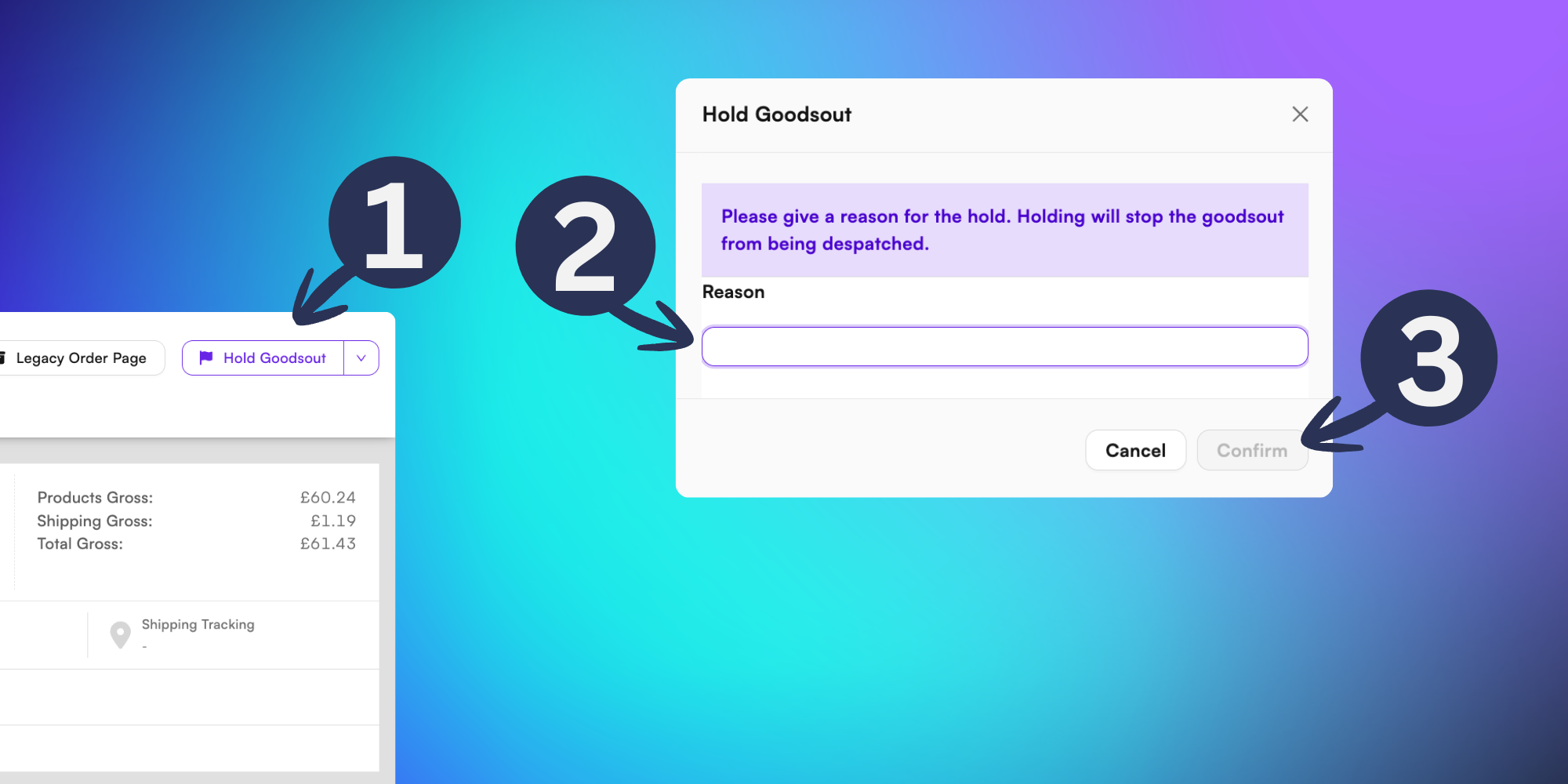
Orders which have been placed into hold will have a Manual Hold tag added to the order.
Unholding an order
Once you’ve opened the order, check that the order is currently on hold, shown by the yellow banner and Manual Hold tag.
Click the Unhold Goodsout button in the top right of the order.
Then type a Reason for unholding the order.
Click Confirm to remove the hold.
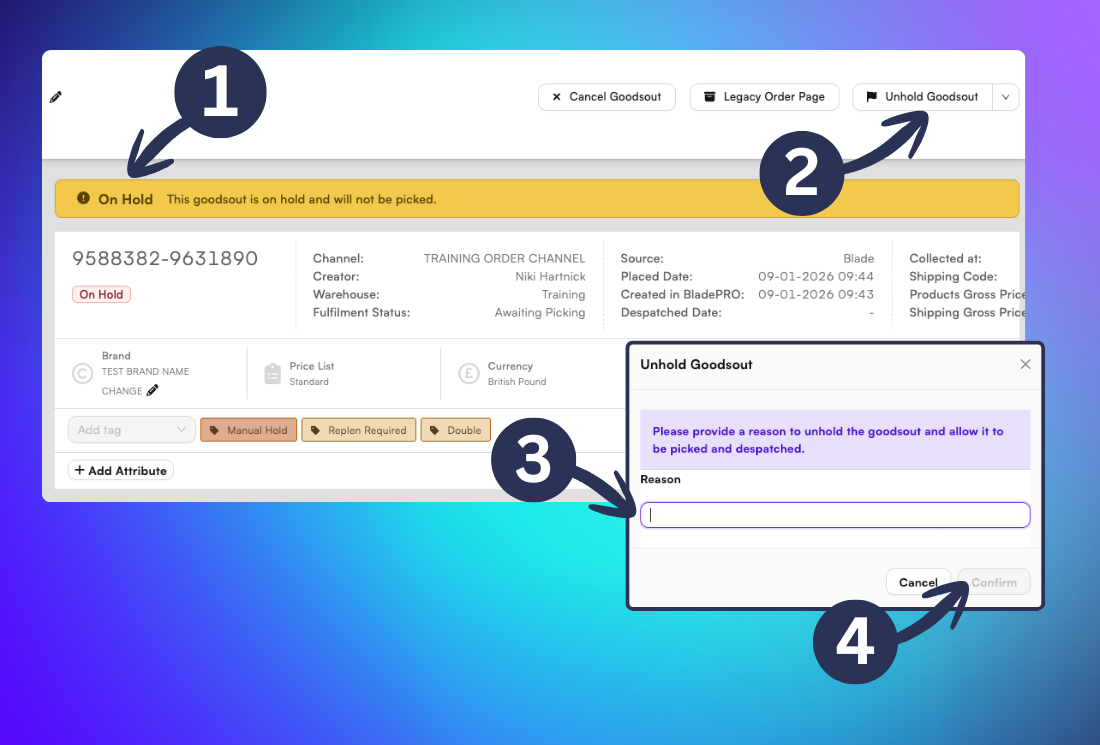
The Manual Hold tag should now be removed from the order.