Logging in
This guide will walk you through logging in to BladePRO - perfect for first-time users or anyone who needs a quick refresher.
Last updated 3 days ago
Before you begin
Make sure you have:
Your welcome email from BladePRO containing your username and temporary password
Access to your email inbox for the login link
Accessing BladePRO for the first time?
Once you’ve been set up as a new user, you’ll receive a Welcome to BladePRO email containing your username and a temporary password.
You will need to use these details to sign in for the first time.
Click the login link in your welcome email to go straight to the BladePRO login page.
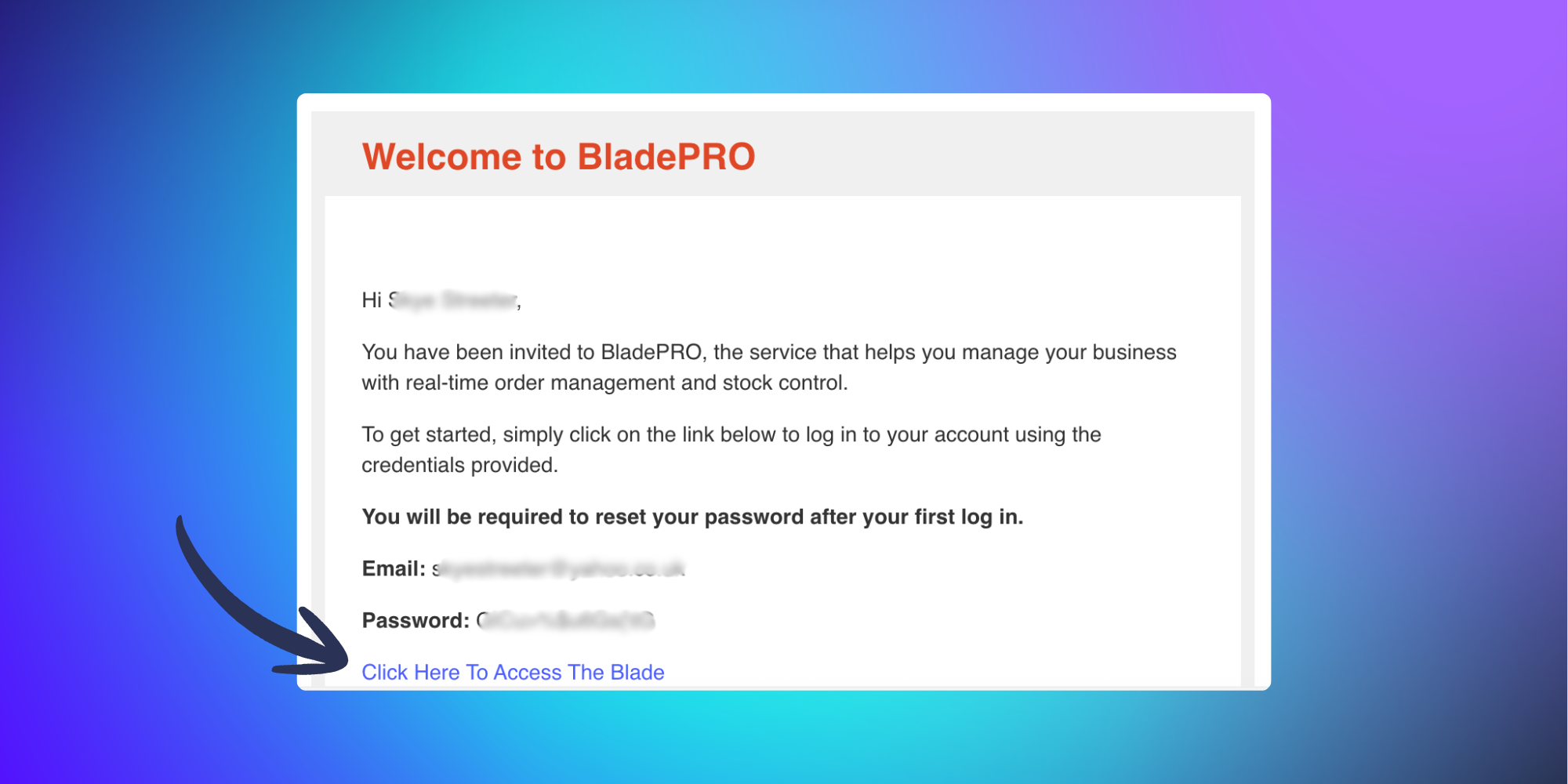
When signing in for the first time, you’ll be asked to reset your password. Enter your new password into the text field and click confirm to continue to the platform. After you’ve completed this step, the temporary password from your email will no longer work.
Tip: Once you’ve logged into BladePRO, you can set up multi-factor authentication (MFA) to provide an additional layer of security to your account.
Not sure how to set up MFA? We’ve got a handy guide linked at the bottom of this article!
Returning to BladePRO
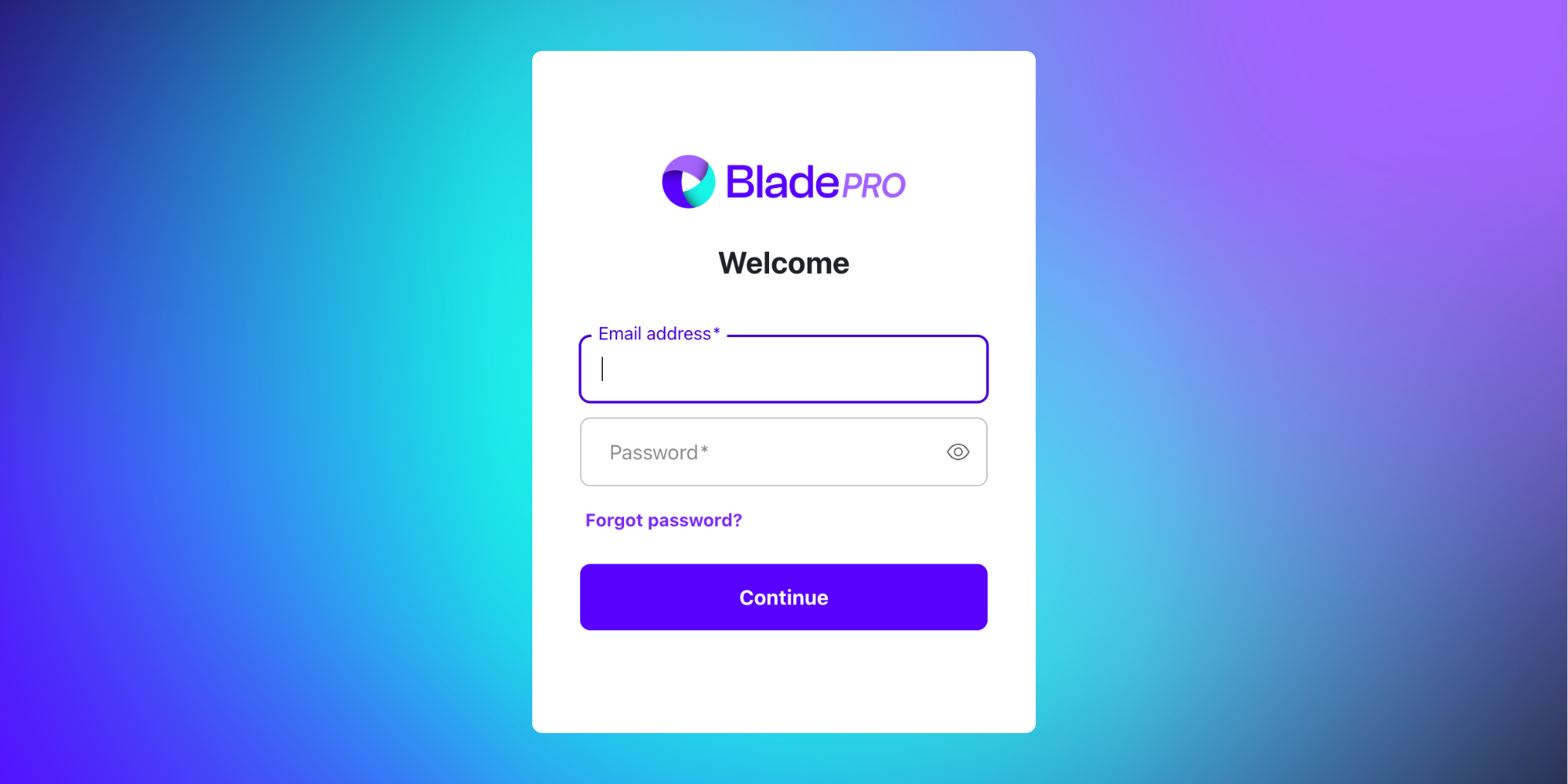
Access the BladePRO login page directly at: https://app.bladepro.io
Enter your username and the password that you created during your first login. If you’ve forgotten your password, you can use the Forgot password option to reset it.
Enhance your account security
Once you're logged in, consider setting up multi-factor authentication (MFA) for an additional layer of security on your account.
Tip: MFA significantly reduces the risk of unauthorised access to your account by requiring a second form of verification beyond your password.
Change or reset your password
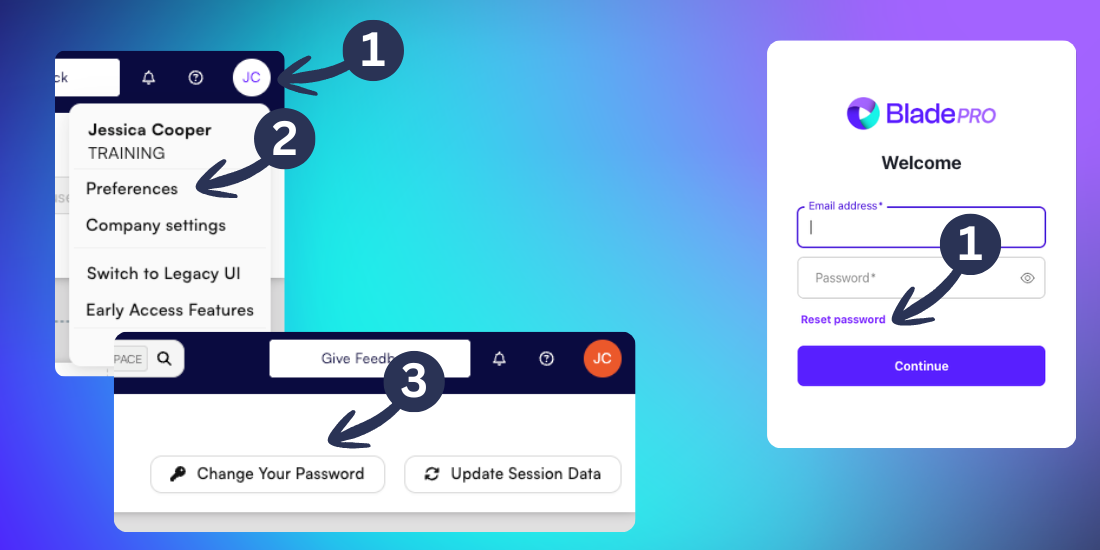
You may wish to change your password periodically to ensure that your account is well protected. If you’re already logged into BladePRO follow the steps below to change your password:
Click on your profile icon at the top-right of the screen (shows as your initials)
Click the Preferences option
Click Change your Password
If you’ve forgotten your password
If you’ve forgotten your password and can’t access BladePRO, click the Reset password link on the login page.
You will be sent a secure email with instructions on how to reset your password. If you can’t access your emails or need further support, contact Client Support.
Passwords must meet the following criteria:
- At least 14 characters
- Contain at least one upper case and one lower case character
- Contain at least one special character