Setting up Multi-Factor Authentication (MFA)
Multi-Factor Authentication (MFA) requires users to provide 2 methods of verification before signing them in to BladePRO, providing a second method of verification beyond just a username and password.
Last updated 4 months ago
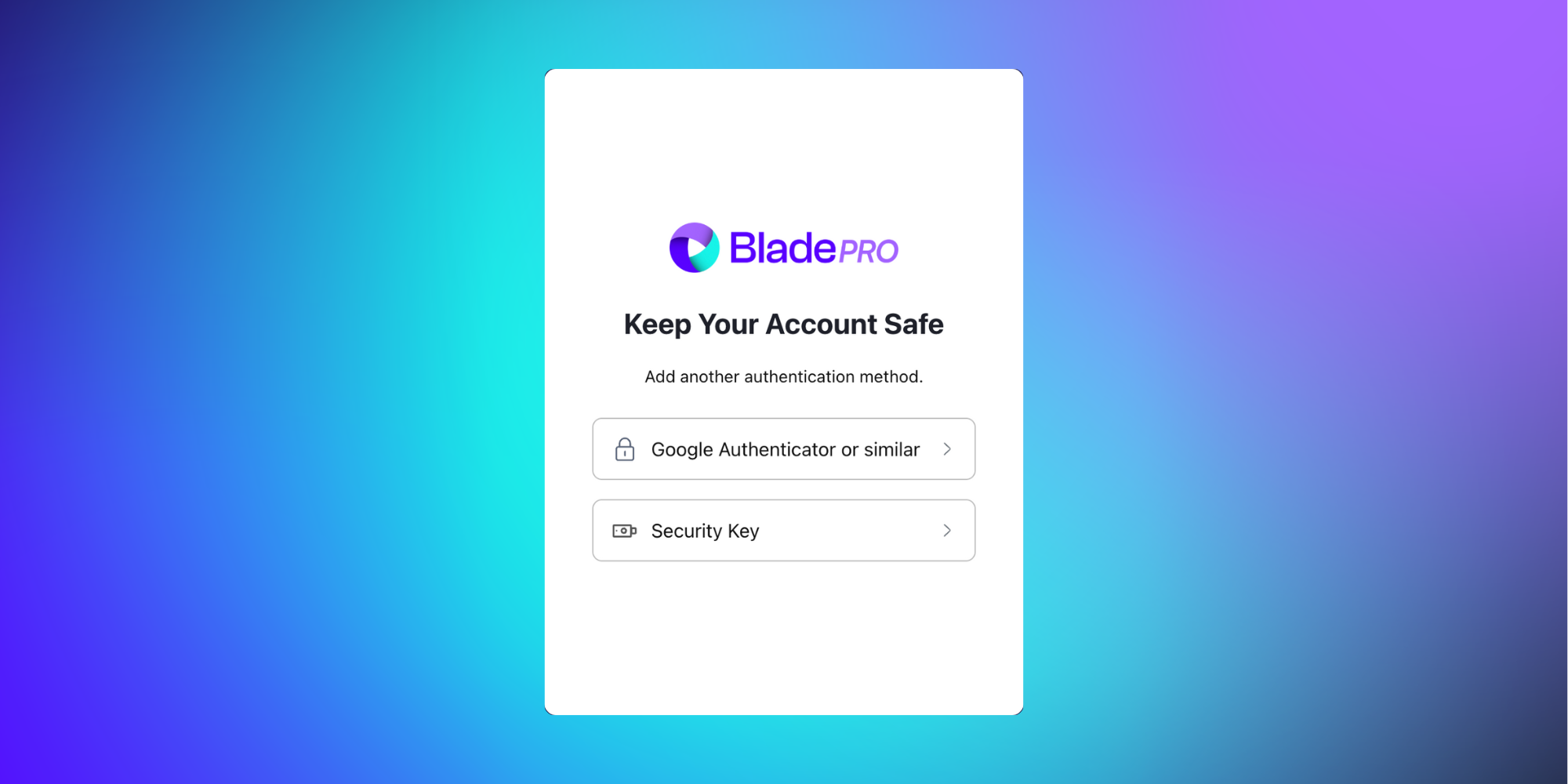
If you’re logging in to BladePRO for the first time, we’ll ask you to set up your second method of authentication. You can choose from:
Google Authenticator or similar
Security Key
Signing in with an authenticator app
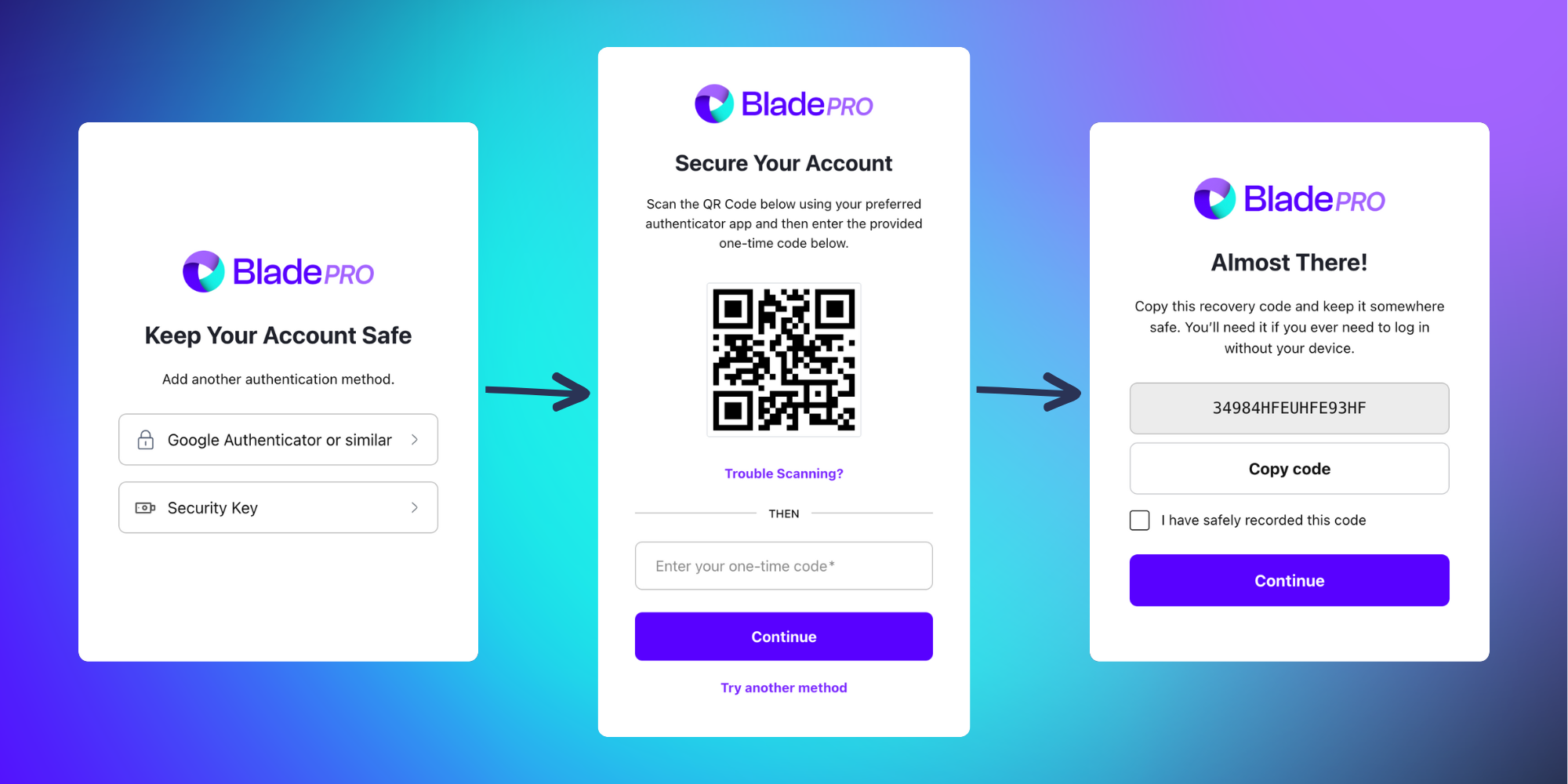
If you chose to sign in using an authenticator app, scan the QR code on a trusted device. Once scanned, the authenticator app will open and generate a one-time code. Enter the code into the Enter your one-time code field and click Continue.
Next you’ll receive a recovery code that you’ll need to store safely - this recovery code can be used to log in without your authenticator device.
Once you’ve safely stored the recovery code, click Continue.
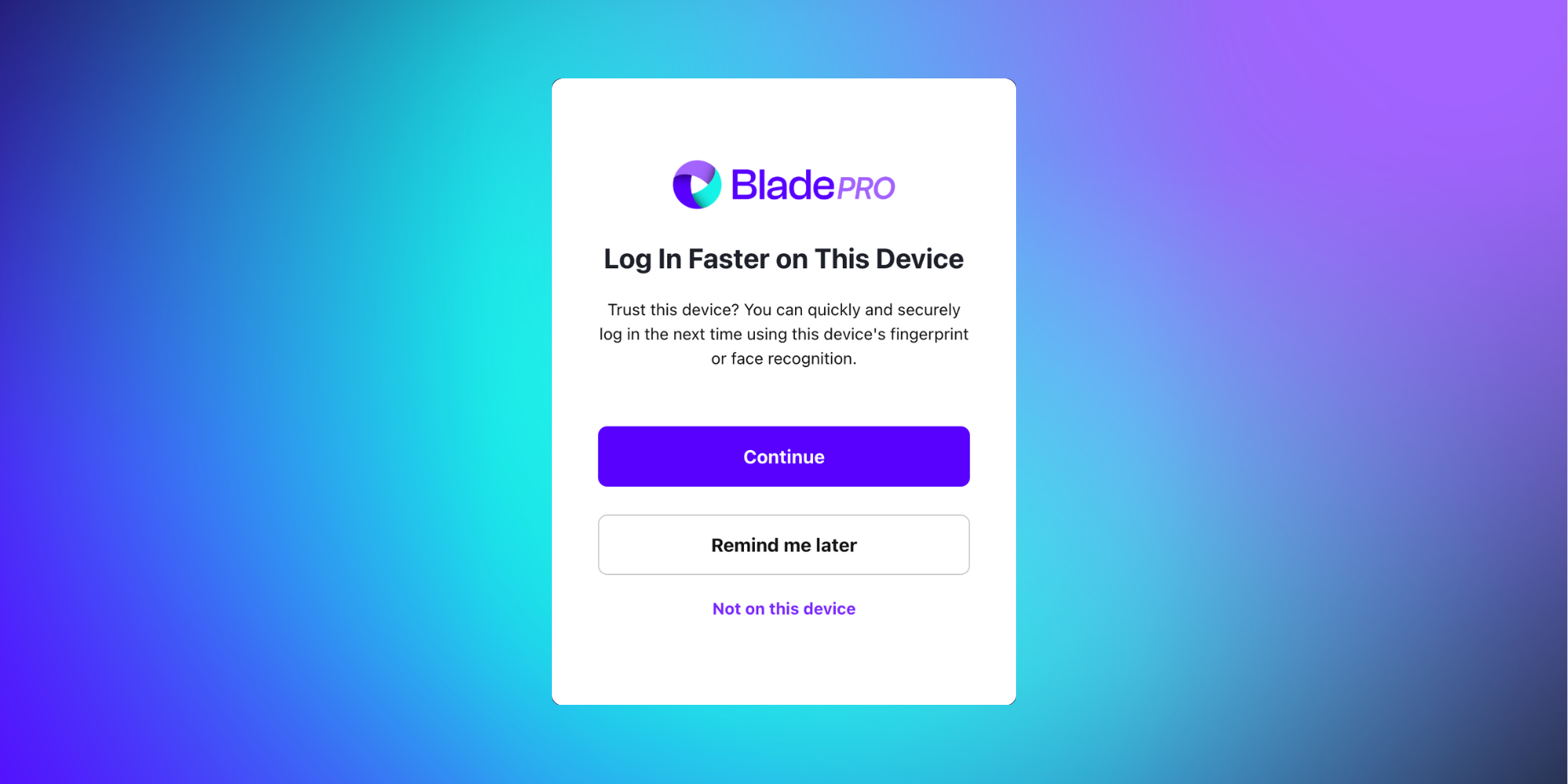
You’ll then be asked if you’d like to Log In Faster on This Device – if this is a trusted device that only you have access to, you can choose to log in to BladePRO using fingerprint or face recognition.
Choose either Continue, Remind me later or Not on this device to continue to the BladePRO platform.
Signing in with a Security Key
A security key is a physical device that acts like a key when connected to your device, allowing you access to BladePRO as a method of sign in.
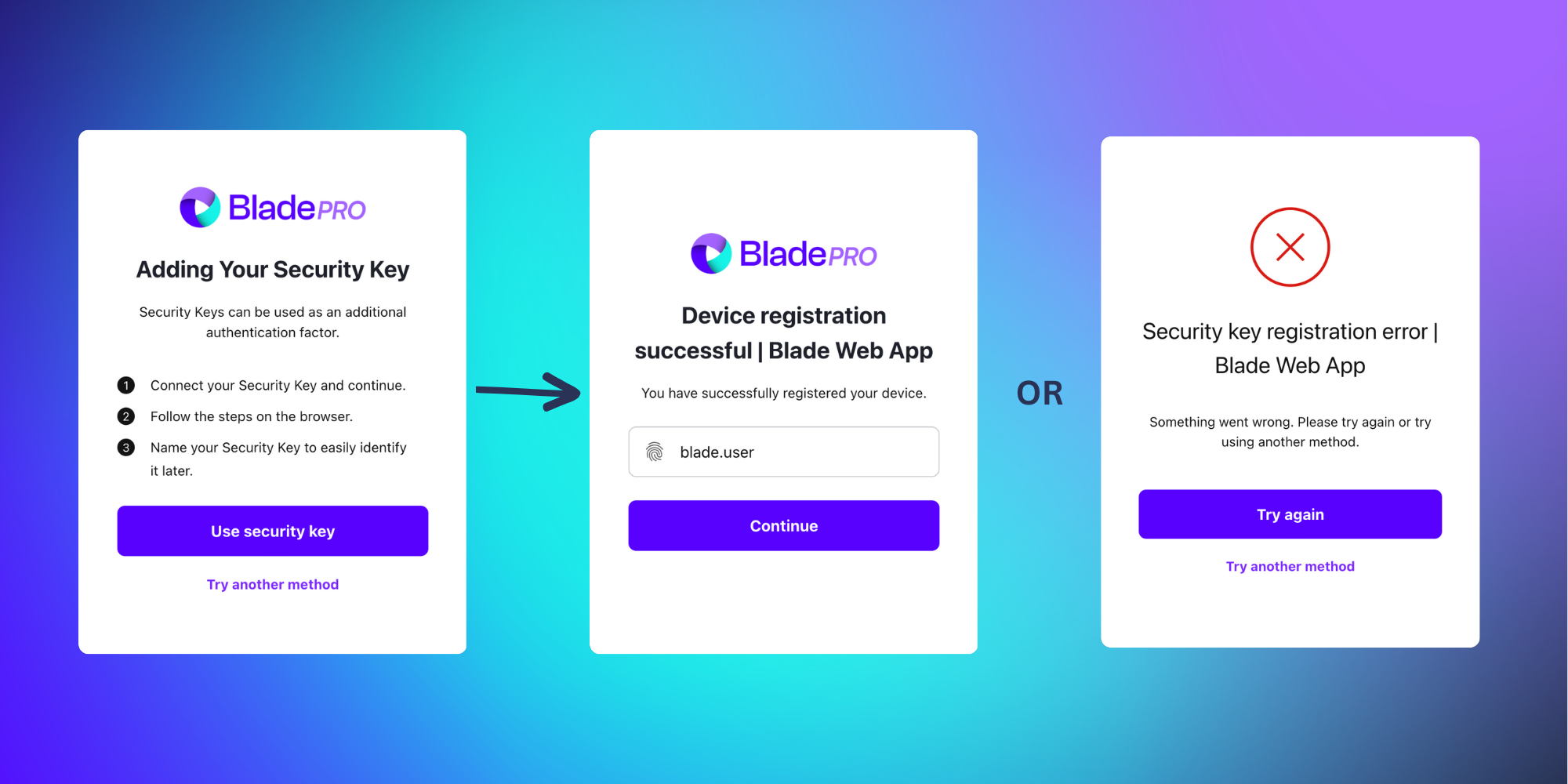
When selecting Security Key, you’ll be asked to register your device by following the instructions on your browser.
Once set up you’ll either receive a Device registration successful message or an error message that will require you to Try again or Try another method.
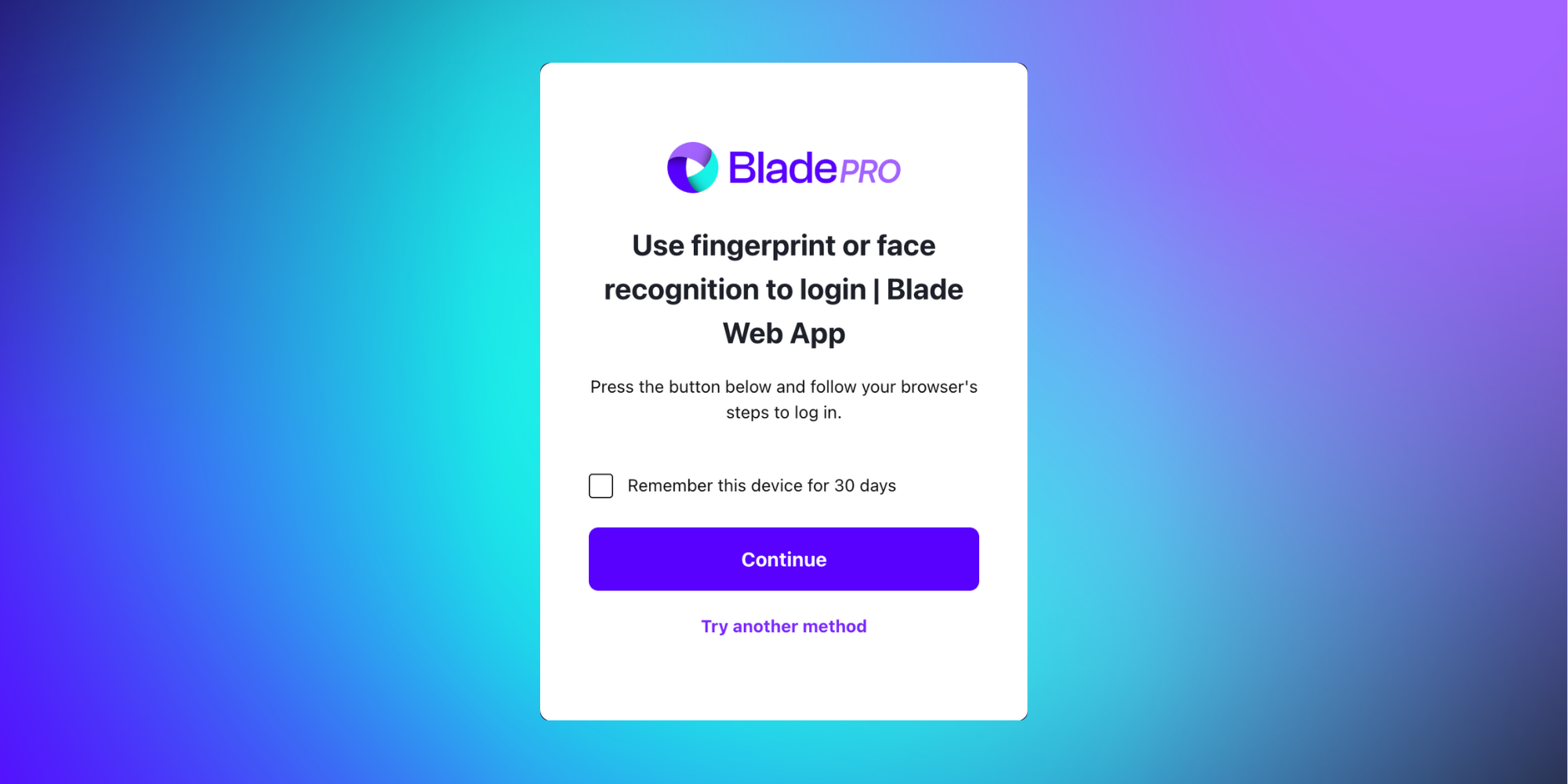
Once you’ve successfully registered your Security Key, you’ll be asked if you’d like to Use fingerprint or face recognition to login. If you’re the sole user of this device, this is a faster method of signing in - you even have the option to Remember your device so you won’t have to use MFA again for 30 days.