Managing notifications
Stay informed about important changes to your warehouse orders with BladePRO notifications. You can customize which alerts you receive and how you receive them, ensuring you never miss critical updates.
Last updated 9 days ago
Viewing your notifications
Your notifications are always accessible from any page in BladePRO. You can view your notifications by clicking the bell icon in the top-right corner of your screen.
A red bubble will show the amount of unread notifications.
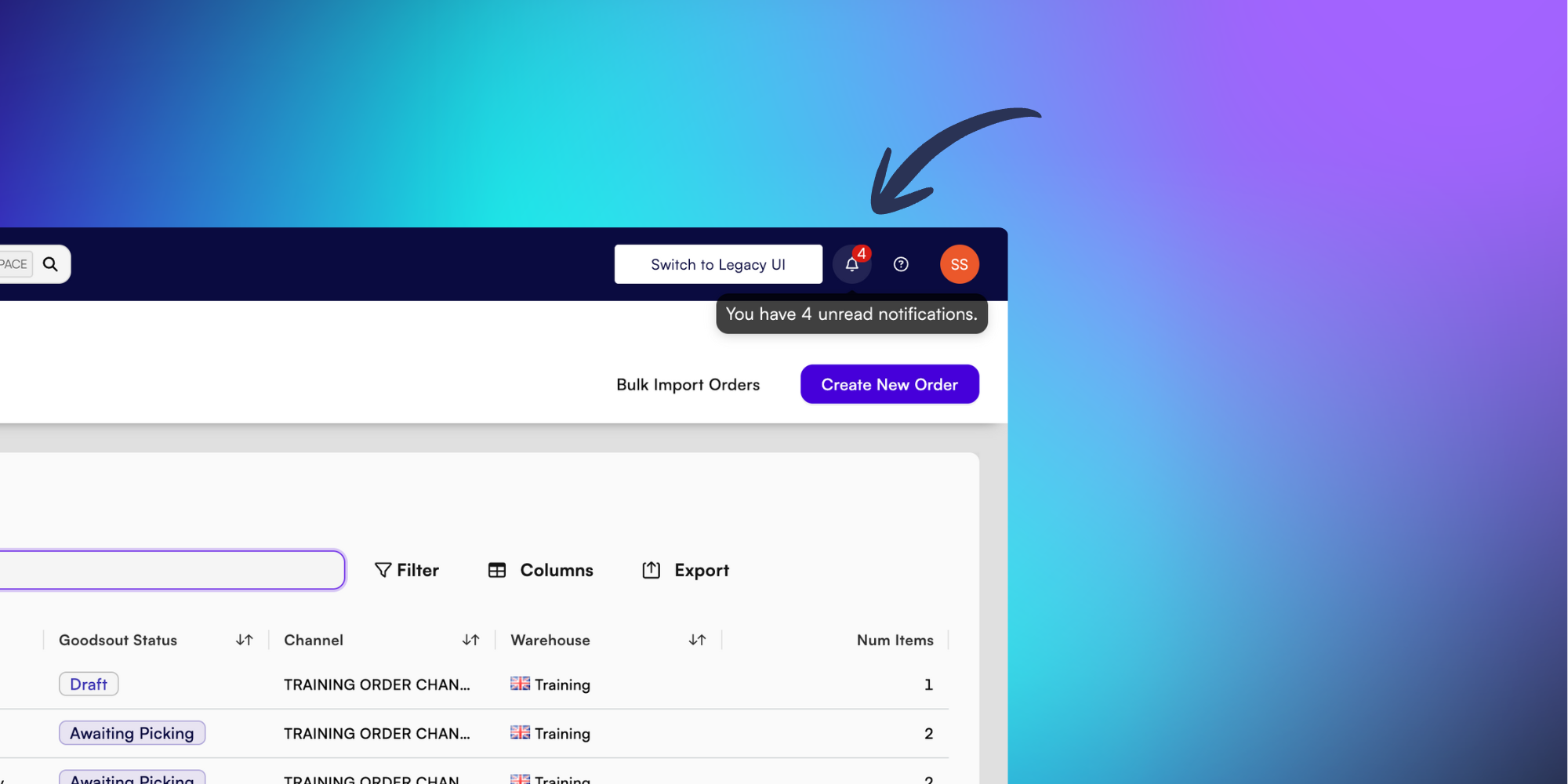
Clicking on the bell will bring up the details of your notifications in a sidebar, with unread notifications shown highlighted in purple.
Customising your notifications
Control which notifications you receive and how you receive them, allowing you to stay focused on what matters most. First, click the bell icon to open your notification panel.
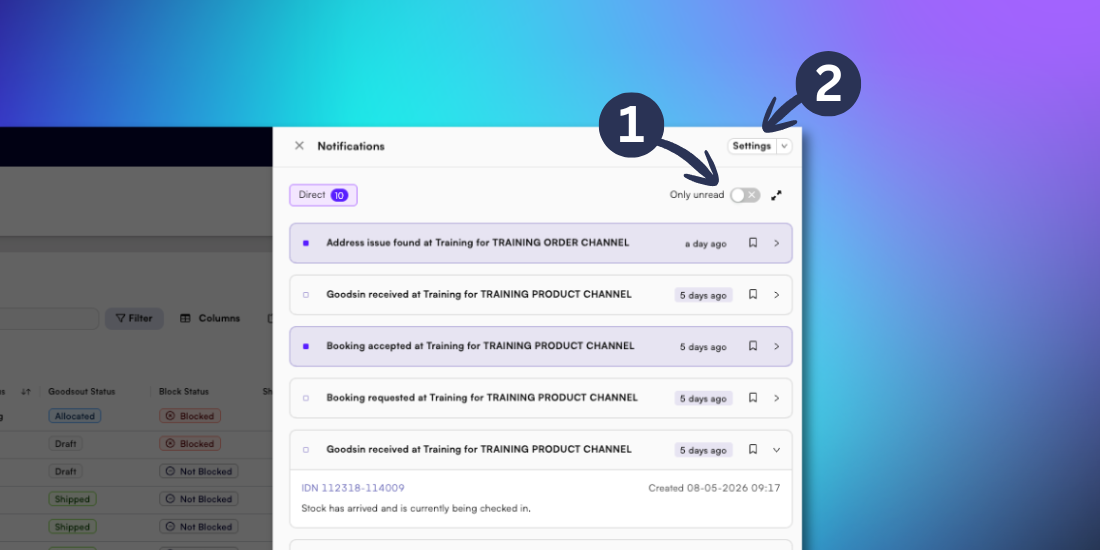
1. Use the toggle to only view unread notifications.
2. Click Settings to open your notification preferences. Select your notification channels using the checkboxes. Once you are happy with the changes, click Confirm.
Email - Receive notifications to your registered email address
BladePRO - Receive notifications within BladePRO
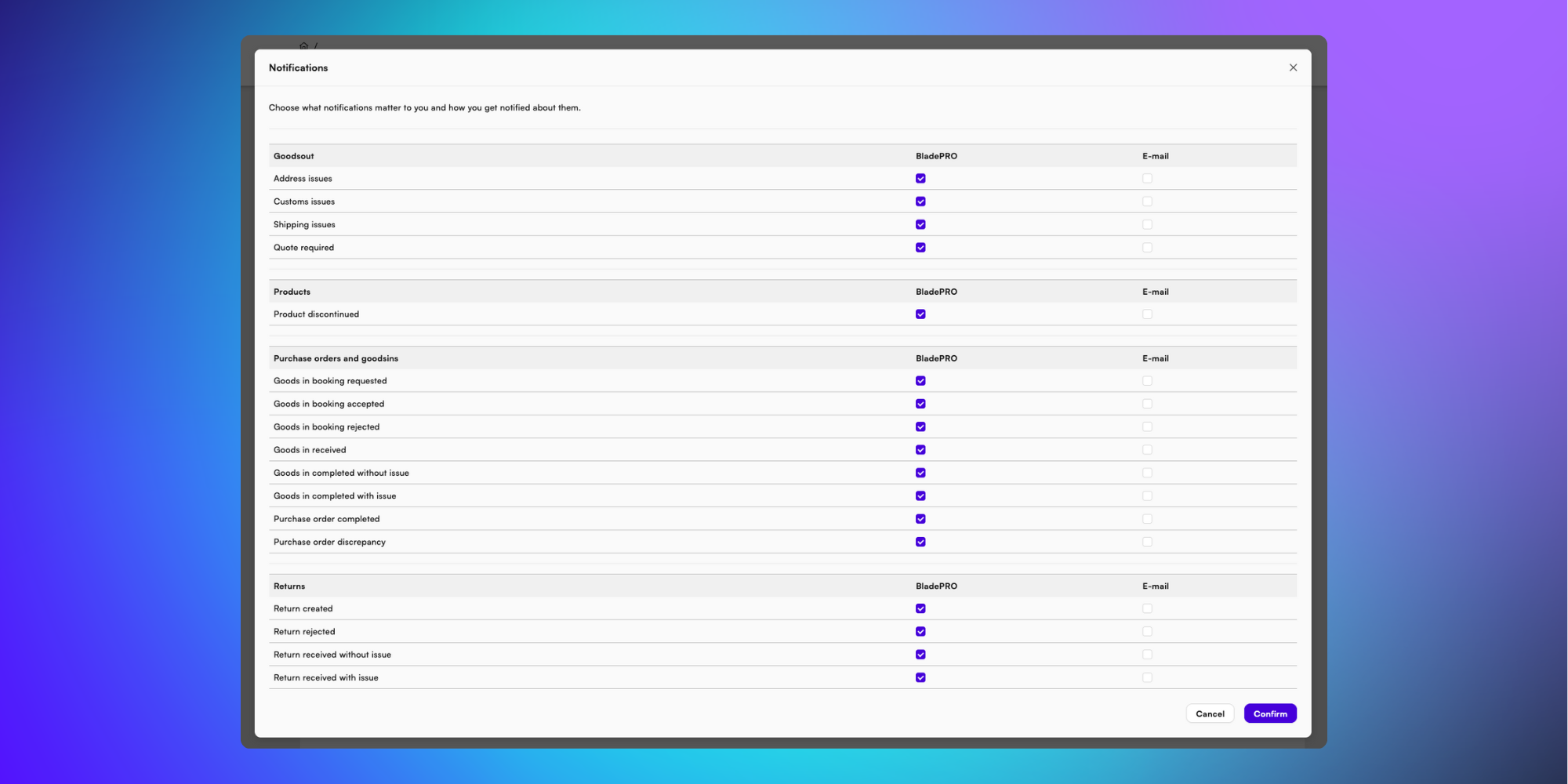
Tip: Enable both email and BladePRO notifications for critical order types to ensure that you never miss important updates, even when you’re away from the application.
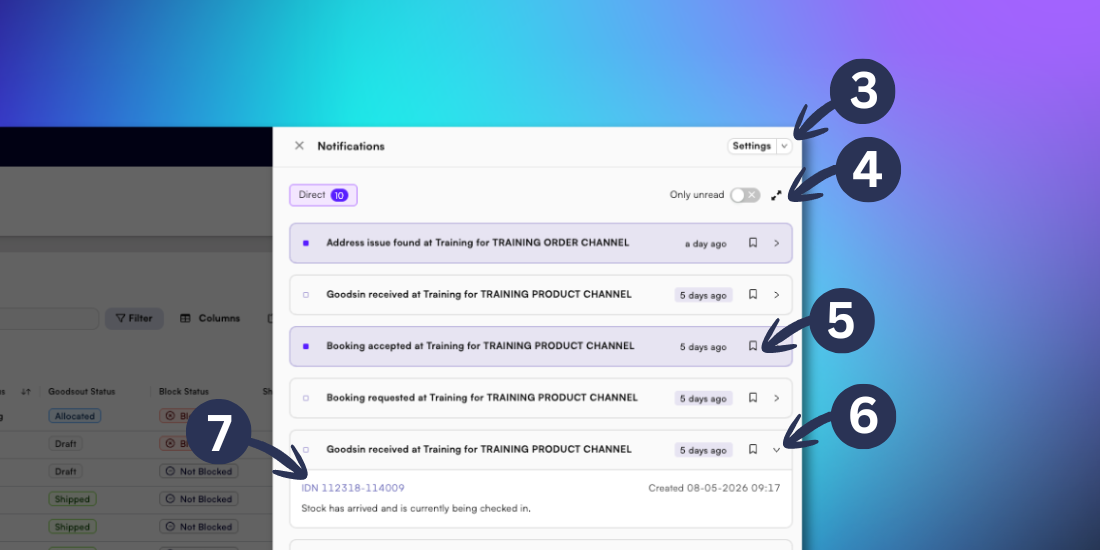
3. Use the dropdown arrow to mark all notifications as read or mute/unmute notifications.
Muting notifications only affects in-app alerts. Email notifications will continue based on your saved preferences.
4. Click the two arrows icon to view the notifications panel in full screen.
5. Click the bookmark icon to monitor specific notifications by adding them to your watchlist.
6. Click the right arrow icon to expand the notification to see more details.
7. Once you’ve expanded a notification, click the IDN link to take you to the specific page relating to the notification.