Splitting a shipment
Splitting a goodsout shipment is the process of dividing an order into separate shipments. This may be required if not enough stock is available in a single warehouse for an order.
Last updated 9 days ago
To split a shipment you’ll need to open your order from the Order List by searching or filtering results.
Not sure how to find your order? Revisit our support article here.
Splitting a shipment
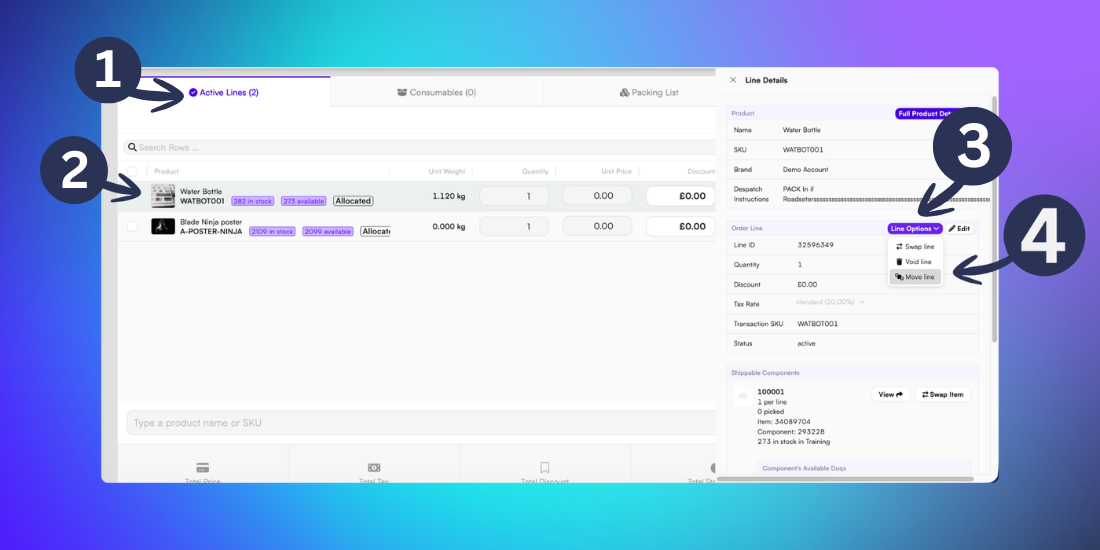
Once you’ve opened the order, go to the bottom of the page to view the Active Lines tab. This shows all products included within the order.
Click on the product that you’d like to move to a separate shipment. This will open a side menu.
Click the purple Line Options button.
From the dropdown list, select Move Line.
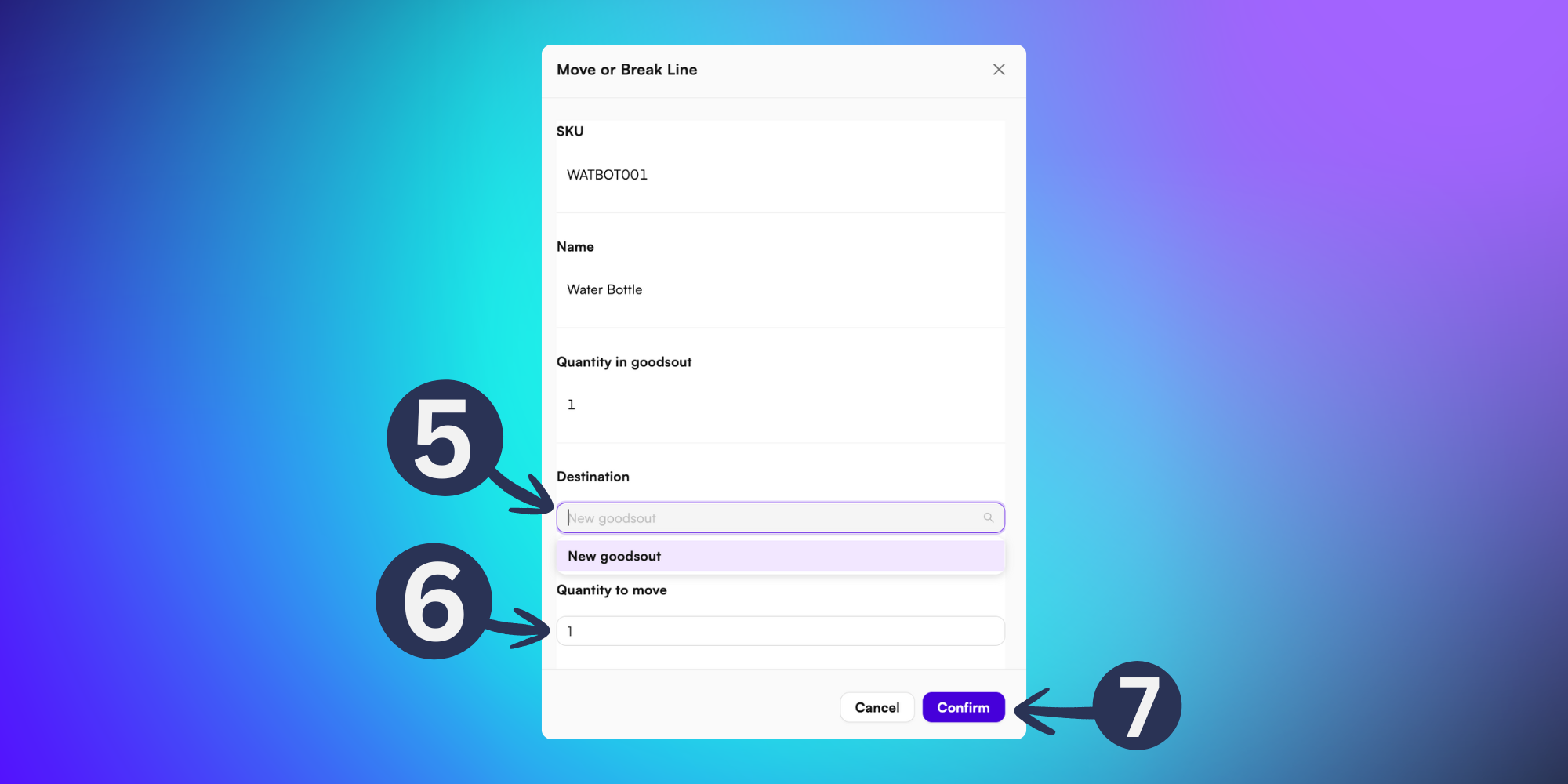
From the Move or Break Line popup, in the Destination field, select New goodsout.
In the Quantity field, input the number of units you’d like to move to another shipment.
Tip: The number of units to be moved may correspond with the remaining stock in a specific warehouse. For further guidance viewing stock levels across different warehouses, visit our support article here
Click Confirm to finalise your selection.
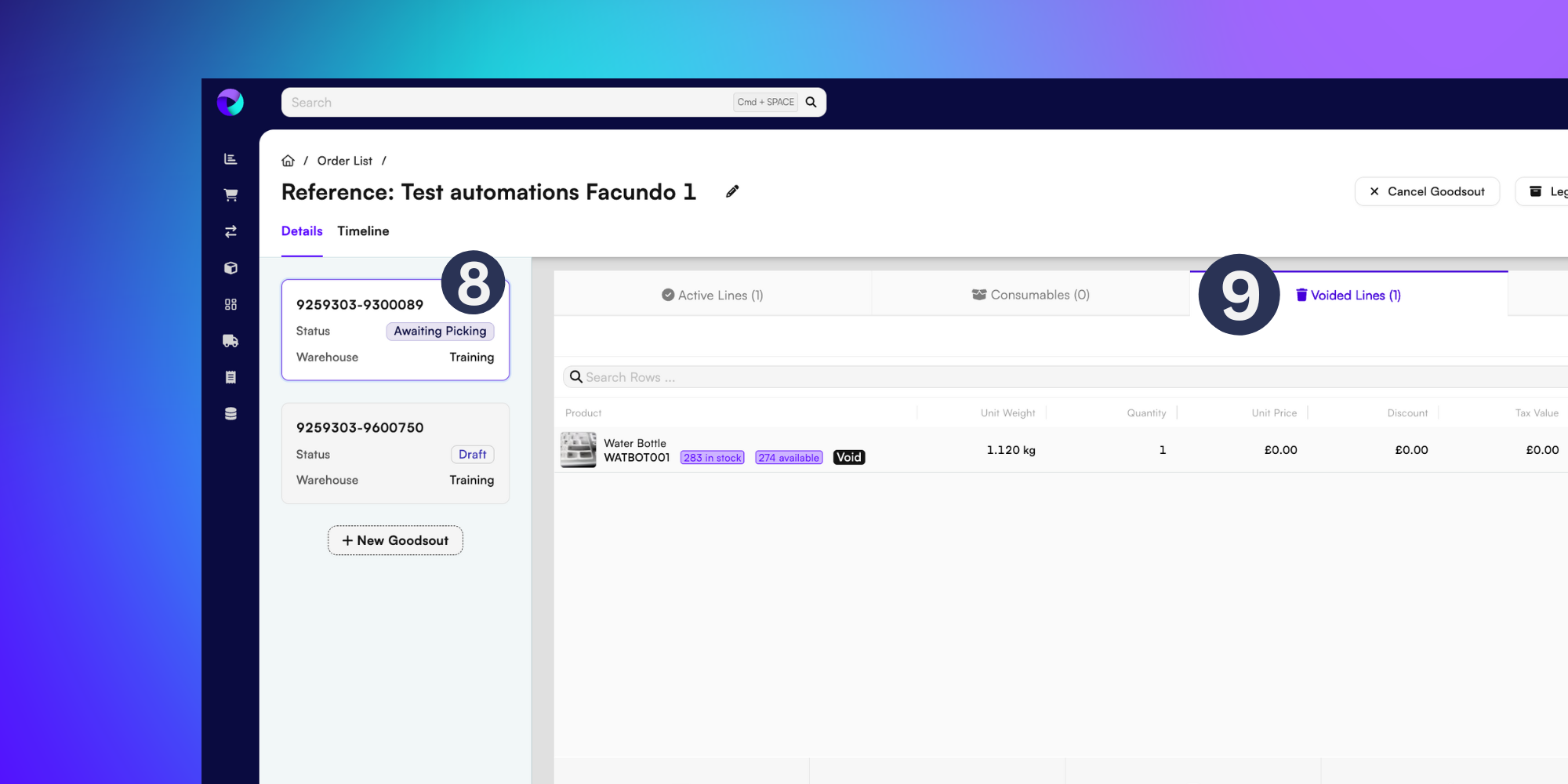
Both shipments will now be visible as separate goodsouts. The new shipment will remain in a Draft status until it has been confirmed.
Split products for the original order will show in the Voided Lines tab.
At this stage you are able to update the order details and goodsout warehouse as required.
For further guidance changing a warehouse on a goodsout, visit out support article here