Changing a warehouse
You can change the warehouse fulfilling your order if you need to redirect shipments from a different location, or when your preferred warehouse is unavailable.
Last updated 3 days ago
Before you begin
Before making any changes to the order, it’s important to check that there is adequate stock in the new warehouse. This ensures that the new warehouse is able to fulfill the order successfully.
If there is not enough stock for the full order, the order may need to be split into separate shipments.
For further guidance viewing stock levels across different warehouses, visit our support article here
To change the warehouse on an order you’ll need to open your order from the Order List by searching or filtering results.
Not sure how to find your order? Revisit our support article here.
Changing warehouse
Once you’ve opened the order, go to the Details page and select the Warehouse tab.
Next to Dispatch this Goodsout, select a new warehouse from the dropdown menu.
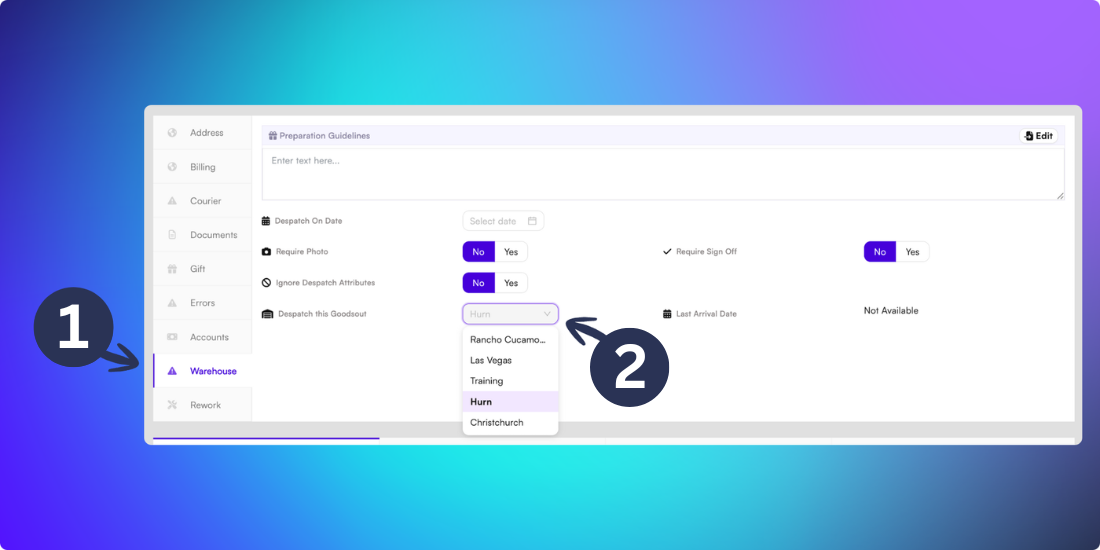
After selecting the new warehouse, a confirmation message appears at the top of your screen confirming the warehouse change.
Caution: Warehouse changes take effect immediately. Orders already being processed may need to be confirmed with the fulfillment team in your chosen warehouse.