Arranging a goodsin shipment
Arranging a goodsin shipment is the process of preparing to receive purchase order goods into our fulfilment centre. Here's everything you need to know before arranging your PO shipment.
Last updated 3 months ago
Finding your purchase order
First, you’ll need to find your purchase order in BladePRO.
If you’re coming straight from creating your purchase order, you’ll already land in the purchase order page.
If you’re coming from elsewhere in BladePRO, you can find the purchase order list by going to Products in the left-hand menu (1), then clicking Purchase Orders (2).
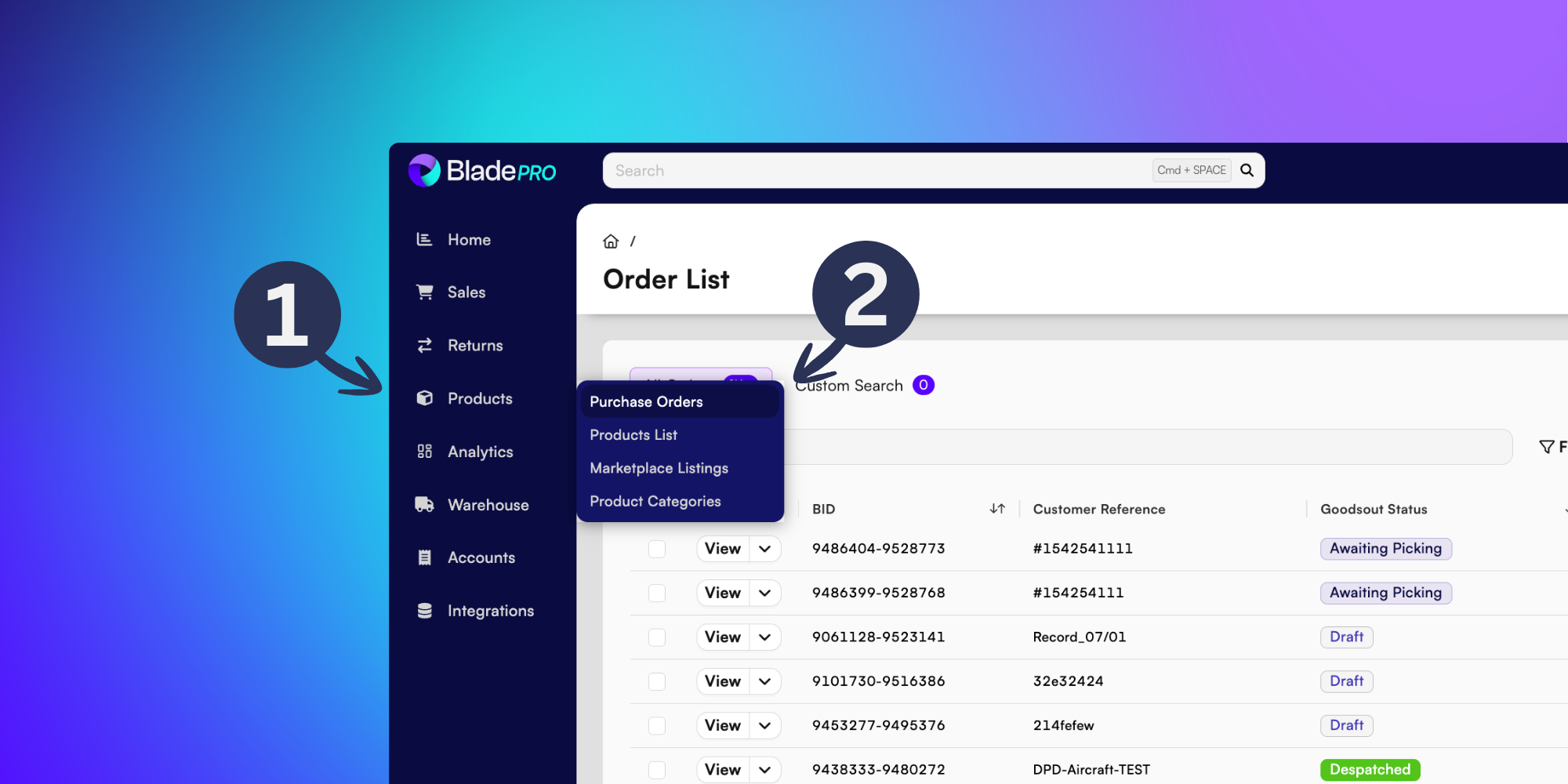
Type a POID (purchase order identification) number into the Search field to find your goodsin order, or click Filter to refine your list (3).
Once found, click View (4) to enter the PO Main Details page.

Inputting your delivery quantities
Click Arrange Goods-in in the top right corner (5).

From the popup menu, you’ll be asked to enter your Delivery Quantities (6).
First indicate whether or not your goodsin is a Container Shipment and fill in the expected quantities as required. Once completed, click Next.
Selections will differ based on whether your goodsin is a container shipment.

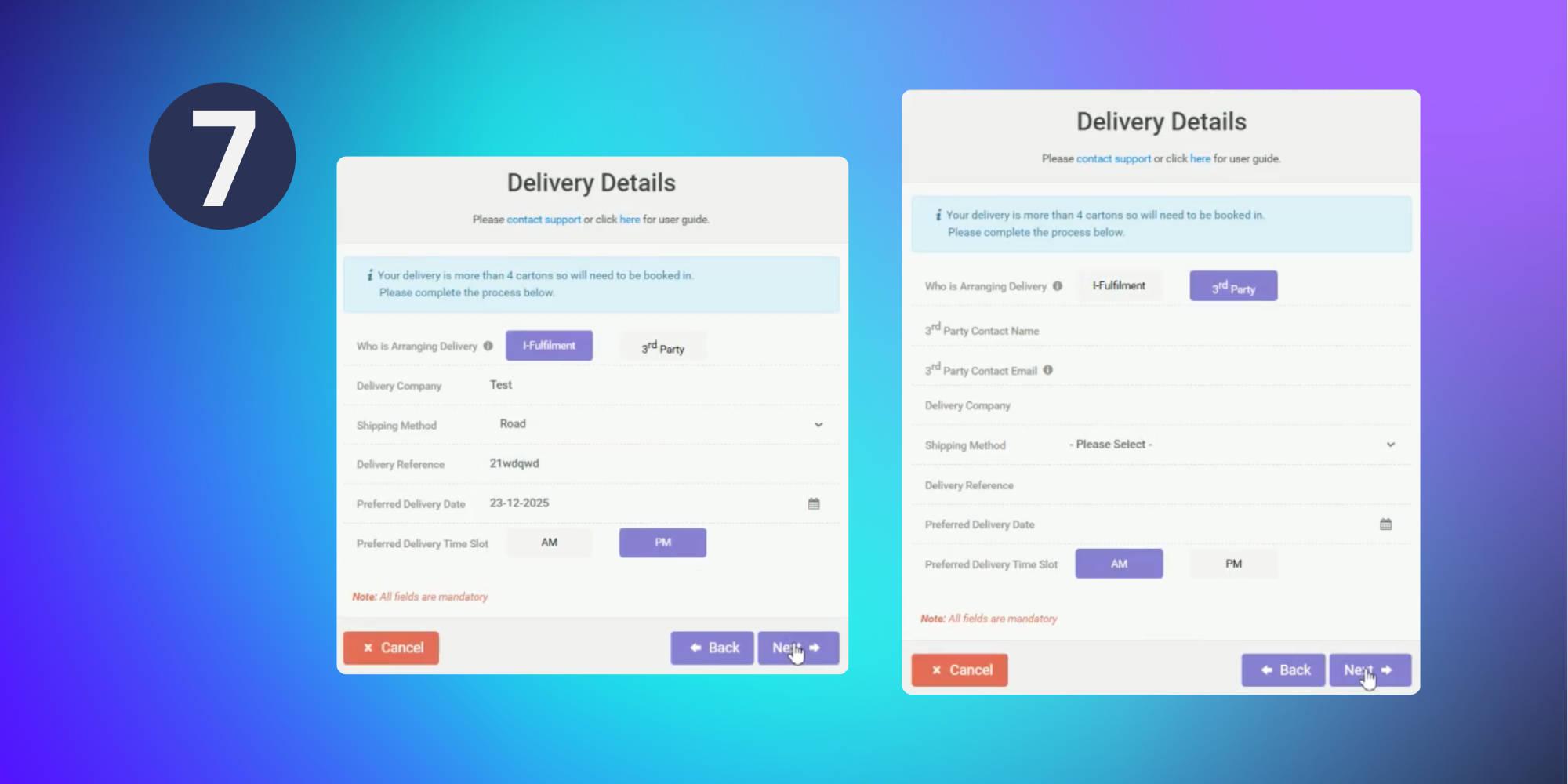
On the next page, you’ll input the Delivery Details (7), including Shipping Method (Air, Road or Sea), Delivery Date and Time Slot.
If a third party is arranging your delivery, you’ll need to input an external name and contact email.
Finalising your goodsin shipment
Once you’re happy with the goodsin details and have uploaded any supporting files (if needed), click Request Delivery Slot.
Confirm the details in the popup and once happy, click Yes to confirm.
If you notice any incorrect details, don’t worry. Hit No to go back and change your selection.

Congratulations - your PO is arranged and on it’s way!
In the meantime, explore related articles:
Adding product instructions - BladePRO