Managing Price Lists
Price lists on BladePRO are .CSV documents listing your products and their unit cost. Price lists can be used to make orders for more efficient by pre-populating SKU unit costs for an order. You may need to have specific price lists for retailers with pre-agreed pricing.
Last updated About 6 hours ago
Accessing the Price List
To access the Price List click on your user initials in the top-right of BladePRO.
Click on Company Settings.
Select the Sales tab in the left menu.
Then click on Price Lists.
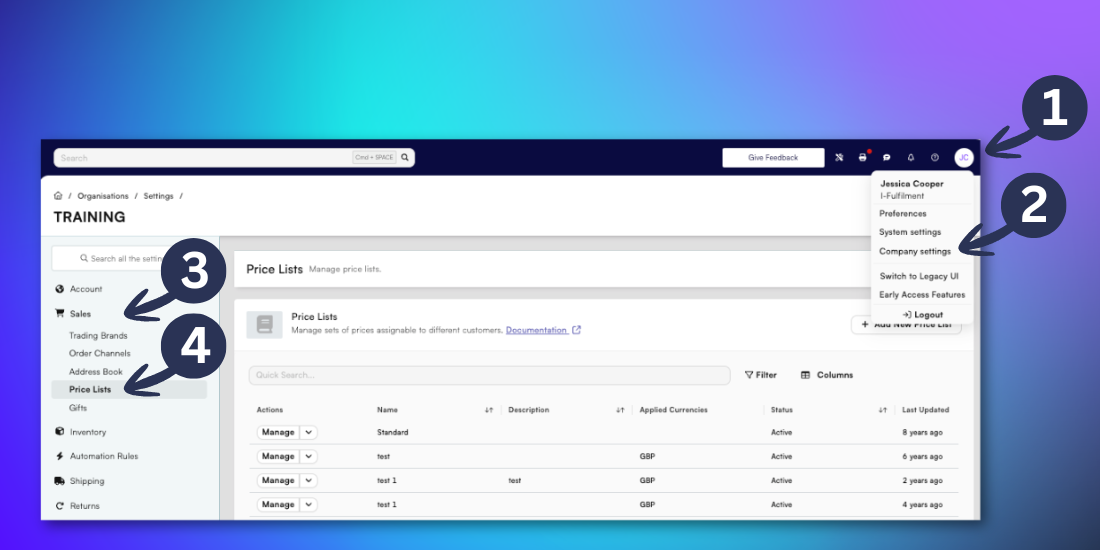
From the Price Lists page you can view all active and inactive price lists which have been saved in your BladePRO account. You are also able to see when the price list was last updated and last used for an order.
Creating a new Price List
To create a new Price List click the + Add New Price List button.
In the popup input a name for the price list.
Add a brief description for the price list.
Then click Confirm.
From the dropdown menu select a currency for the price list from either:
-GBP: British Pounds
-USD: United States Dollars
-EUR: EurosThen select Download Price List File.
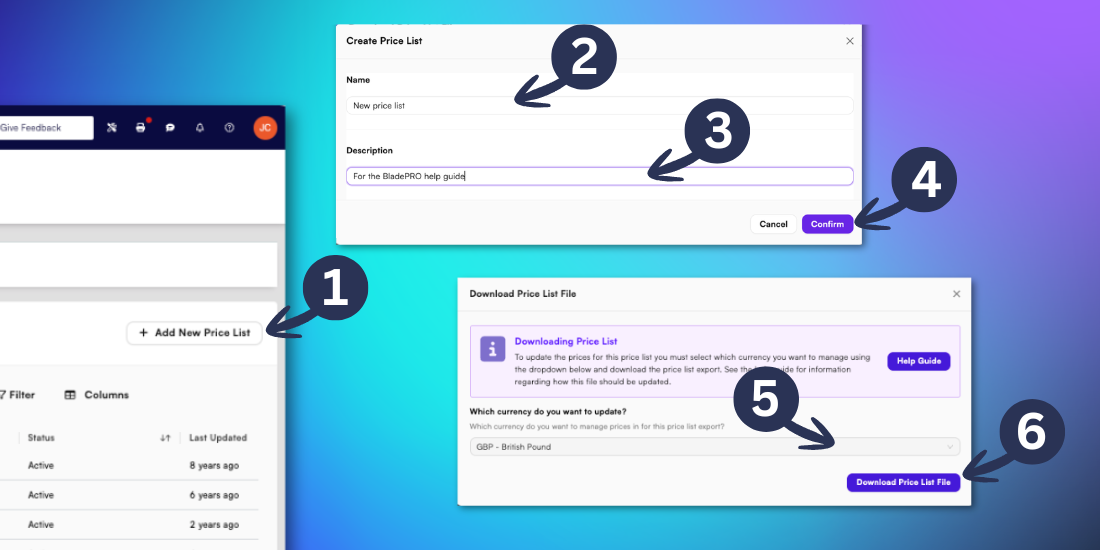
This will download the .CSV template to your device which can be opened in Microsoft Excel, Google Sheets or similar applications. In the document you will need to insert the order channel, SKU, name of the product and the unit cost.
Once you have completed the document you will need to upload it to the newly created Price List.
For further support completing the price list template refer to our Help Guide linked within the Download Price List File option.
Uploading a Price List
Uploading a Price List template stores the details for each SKU and the associated unit cost within BladePRO. You can upload a completed template to a newly created Price List, or to amend an existing Price List.
You will need to have completed the .CSV template in order to upload it to the Price Lists page.
In the Price List page select the dropdown arrow next to the Price List you wish to change.
Click Upload Price List.
Drag and drop the completed .CSV file, or click to open the file storage on your device to locate the file.
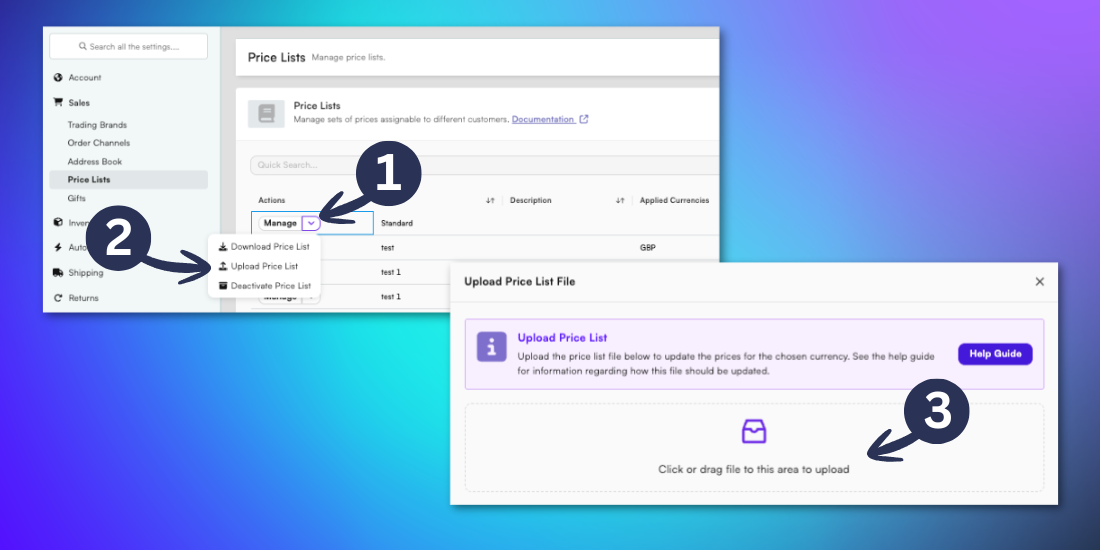
This will update the Price List with the new information from the template.
Deactivating a Price List
In the Price Lists page select the dropdown arrow next to the Price List you wish to deactivate.
Click Deactivate Price List.
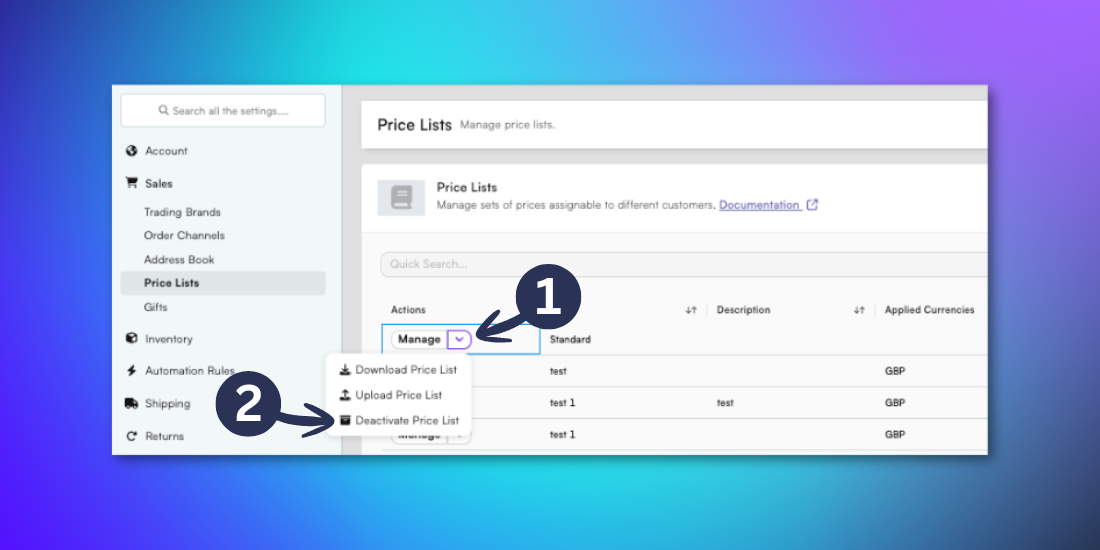
This will change the status of the Price List to inactive in the status column. Deactivated Price Lists can be reactivated from the dropdown menu, or changed by uploading a new .CSV template.