Exploring your Address Book
Instead of inputting address information manually for an order, the Address Book allows you to pre-populate the address and contact information for a previously saved contact, streamlining the order process. From the Address Book you can add, remove or edit contacts.
Last updated About 5 hours ago
Accessing the Address Book
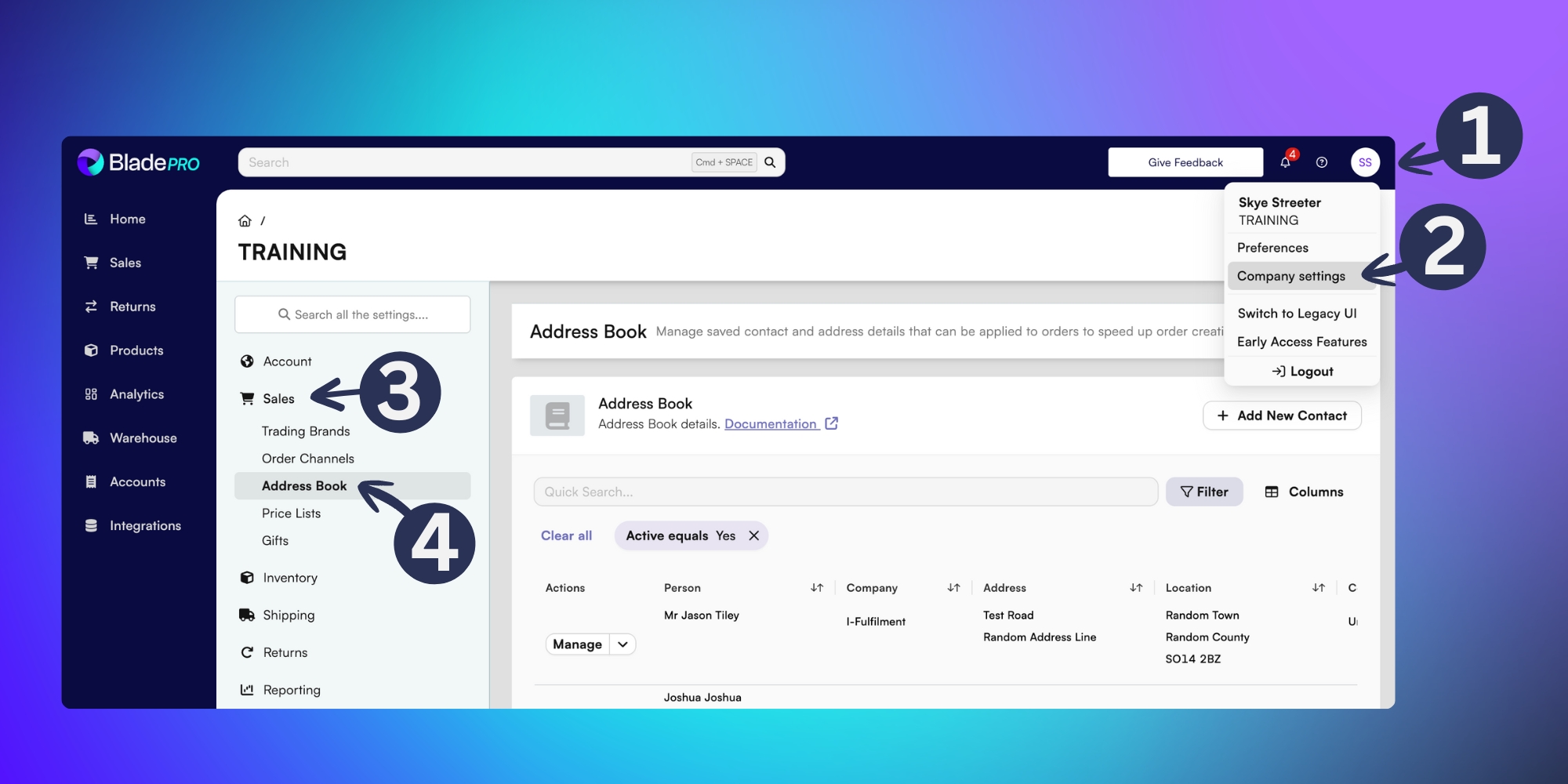
To access the Address Book click on your in the top-right of BladePRO
Click on Company Settings.
Select the Sales tab in the left menu.
Then click on Address Book.
Using the Address Book
From the Address Book you can view the key contacts which have been saved in your BladePRO account.
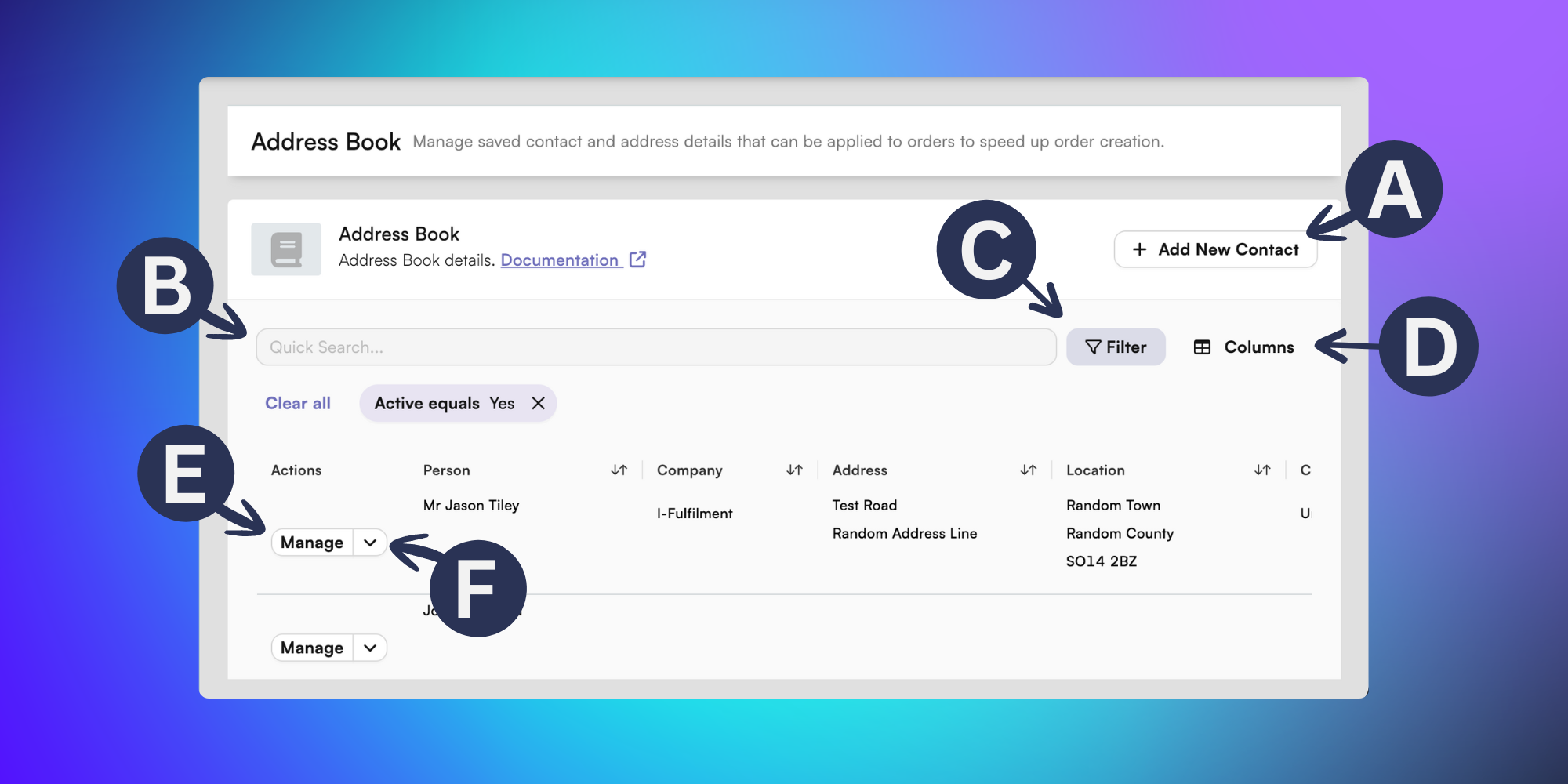
In the Address Book you can:
A) + Add New Contact - Create a new contact for your address book by adding key address and contact details.
B) Quick Search - Find contacts quickly and efficiently by typing a name or part of an address into the quick search bar.
C) Filter - Click the Filter option to refine your Address Book by country, company or active/inactive entries.
D) Columns - Click the Columns option to change the visibility of the Address Book by choosing which columns you’d like to display in your table, from a list of:
- Person: The name of the contact.
- Company: The organisation the contact is affiliated with.
- Address: The contact address of the person.
- Location: The geographical place where the individual is contactable.
- Country: The country where the contact lives or is contactable in.
- Contact: The phone number and/or email address of the individual.
E) Manage - Click the Manage button to edit and update contact address details.
F) Dropdown arrow - Click the dropdown arrow to:
- View Details: Open a sidebar with the contact’s address information, which can be copied.
- Deactivate: Make the contact inactive.