Creating a bundle
A bundle (also called an Existing inventory or Virtual Product) is a group of existing products which are ordered together. They may be used seasonally to streamline warehouse operations for popular combinations of products. When you create a bundle in BladePRO, you're defining which products should be packaged and shipped together as a single unit.
Last updated 3 days ago
Before you begin
In order for a bundle to be created, each individual component product must already exist in BladePRO. You can check which products have already been added by using the Product List.
For further guidance on adding a new product, visit our support article here
Creating a new bundle from the Product List
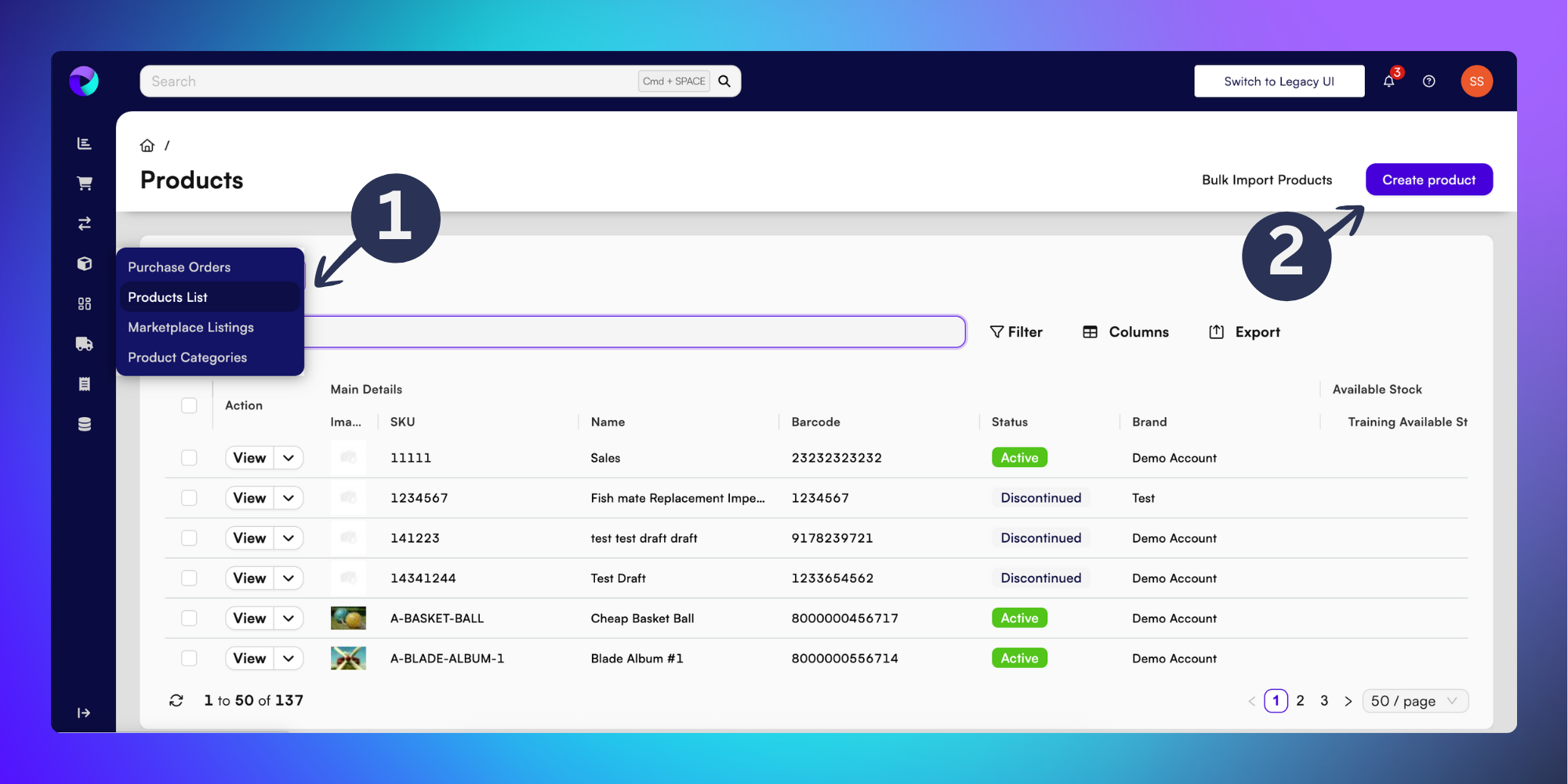
Click the Products icon in the left-hand menu (look for the box icon) then click Product List
Click Create Product
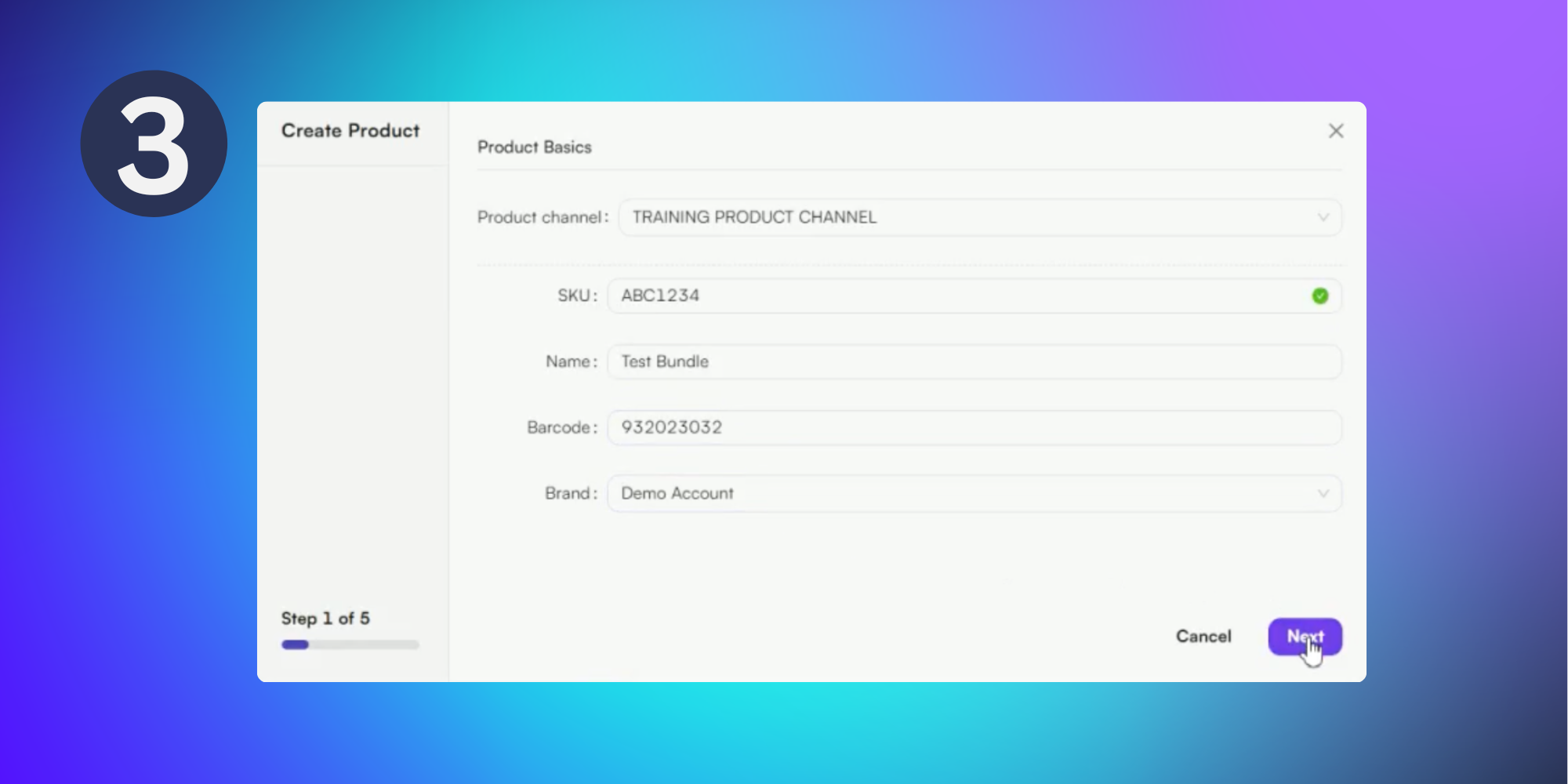
In the popup menu complete the following details:
Product channel - Choose from a dropdown list of preconfigured product channels.
SKU - Unique identifying name for the product.
Name
Barcode
Brand
Then click Next.
Caution: If the inputted SKU already exists a red icon will appear next to the SKU field with an error message underneath
Adding products to bundle
This section is used to capture which components are to be included within the bundle.
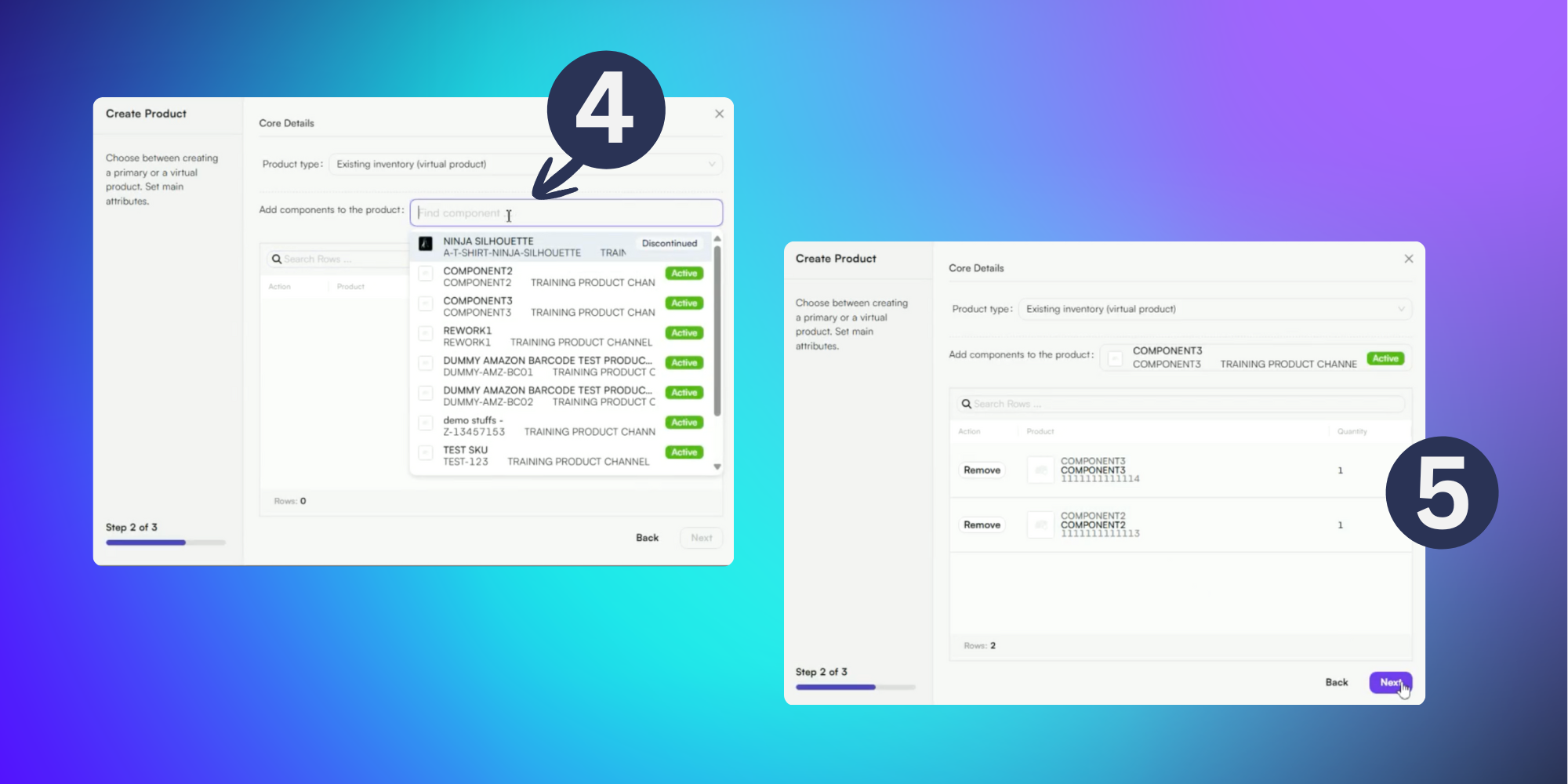
In the popup menu change the Product type to Existing Inventory (virtual product)
Search for each product to be added using the search bar. You can find products using the product name or SKU. Click the product from the dropdown menu to add it.
If required, adjust the quantity of each product in the bundle from the table
Then click Next.
The bundle has now been created and is ready to use in orders.