Adding attachments to an order
Some products automatically upload documents to an order automatically when they are added to an order, but in some cases you’ll need to upload attachments them manually.
Last updated 9 days ago
To add attachments to an order you’ll need to open your order from the Order List by searching or filtering results.
Not sure how to find your order? Revisit our support article here.
Adding attachments
Once you’ve opened your order, go to the Details page and select the Documents tab.
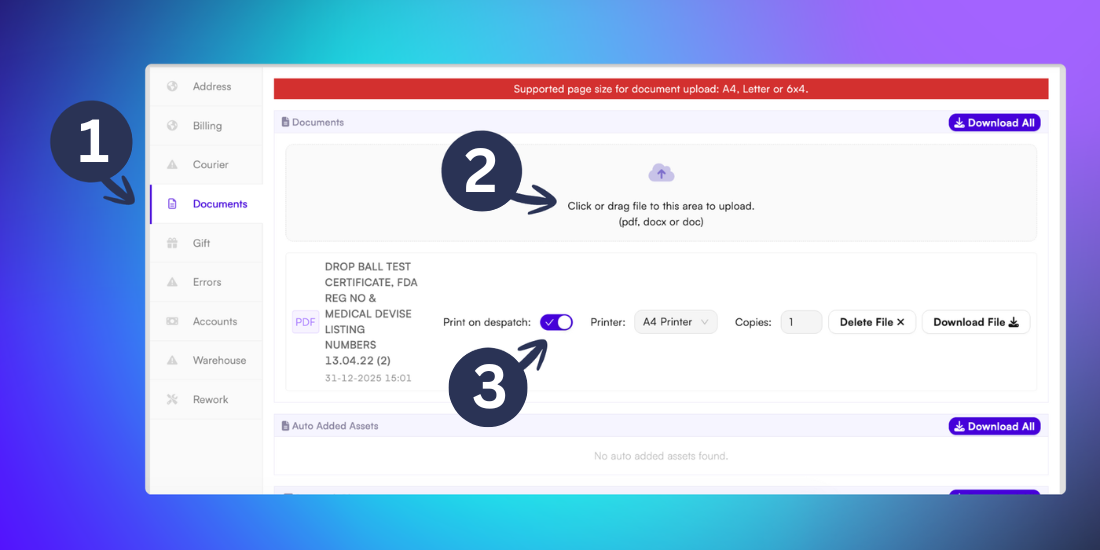
From here you’ll be able to upload files to your order by dragging and dropping into the window, or clicking inside the box and locating the relevant file on your device.
Tip: Compatible attachments file types include .pdf, .doc and .docx formats.
Printing on despatch
If your attachments needs to be automatically printed on dispatch, you can toggle this on beneath the upload field using the Print on despatch selector. You can also select the print size (e.g. A4 or label sizes) and number of copies.