Reviewing product allocations
Allocations are used to reserve available stock in the warehouse to fulfill a pending order. Viewing allocations can be useful to see a list of all pending orders including a specific product.
Last updated 3 days ago
To view product allocations you’ll need to open your product from the Product List by searching or filtering results.
Not sure how to find your product? Revisit our support article here
Viewing product allocations
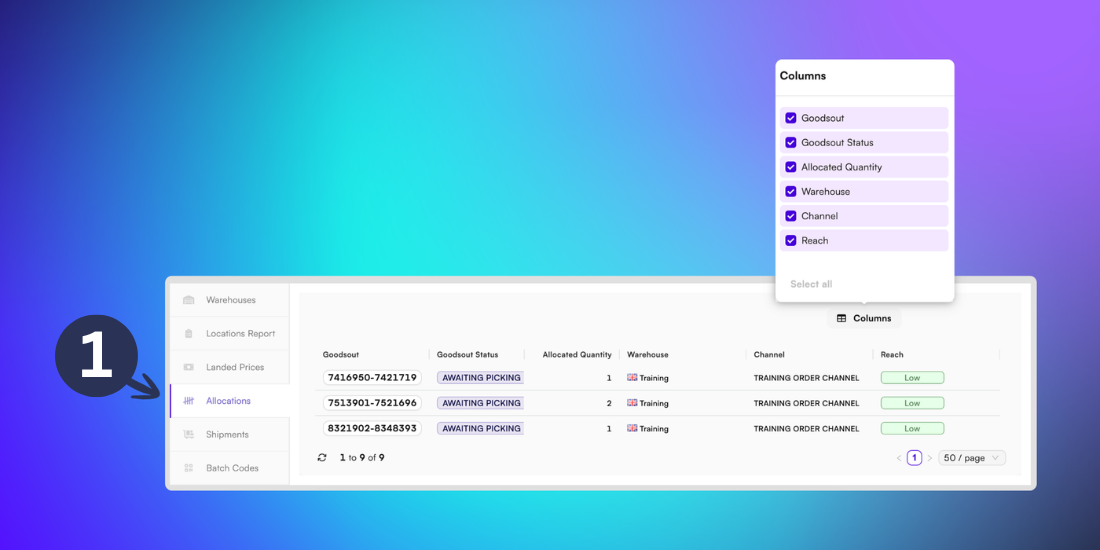
Once you’ve opened your product, go to the Stock page and open the Allocations tab from the left menu.
This page shows all orders containing the selected product, including the allocated quantity, warehouse and goodsout status.
Customise your view
You can customise the table by clicking the Columns button and selecting the boxes next to the fields you want to display. These include:
Goodsout: The order number for the goodsout containing the selected product. Click this link to access the Order Details page.
Goodsout status: The current stage of the goods in the fulfilment process.
Allocated quantity: The number of units assigned or reserved for the order.
Warehouse: The facility that the product unit is stored in until dispatch.
Channel: The sales or distribution pathway set up in BladePRO for this order.
Reach: The height of the location in the warehouse. Low refers to pick face, high means the product is kept in storage.