Managing returns
If a customers wishes to return a product they can initiate the return themselves through the Returns Portal. This is automatically captured by BladePRO so that when the item is received at the warehouse it can be easily processed. However a return may need to be created manually.
Last updated 3 days ago
Before you begin
Make sure you have:
The BID number for the order or Customer Reference
Details about which items are being returned
The reason for each return
To create a new return you’ll need to open your order from the Order List by searching or filtering results.
Not sure how to find your order? Revisit our support article here.
Creating a return
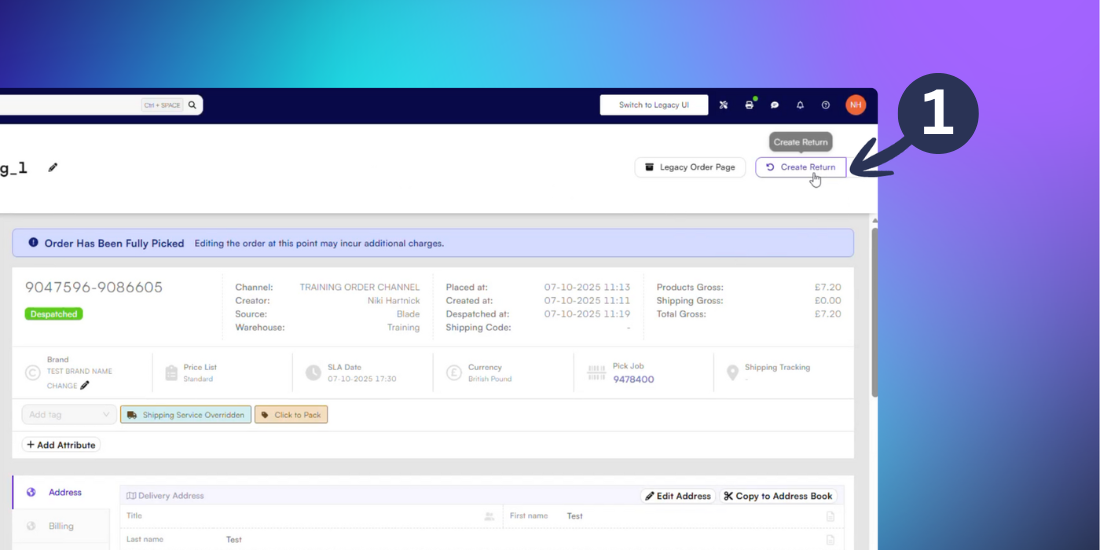
Once you’ve opened the order click Create Return in the top-right corner of the page.
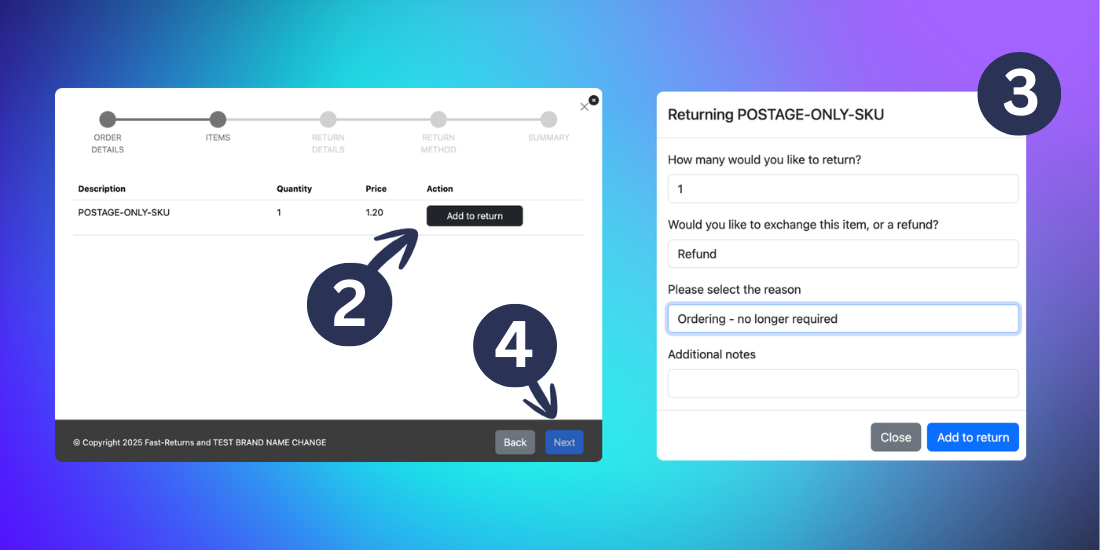
For the product in the order being returned, click the Add to return button
Fill out the return details, including:
-How many of that SKU is being returned
-Is it a refund or exchange (exchange for an alternative product)
-The reason for the return (e.g. too small, too large, no longer required)
-Any Additional notesOnce completed, click Add to return.
Repeat for all products being returned, then click Next.
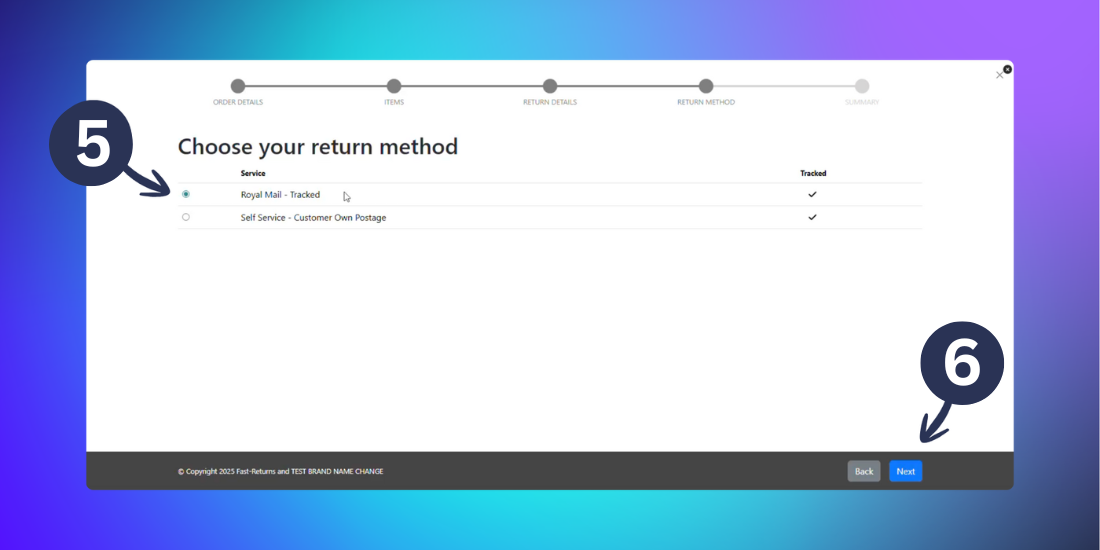
Select the return method by choosing a courier from the provided list.
Click Next
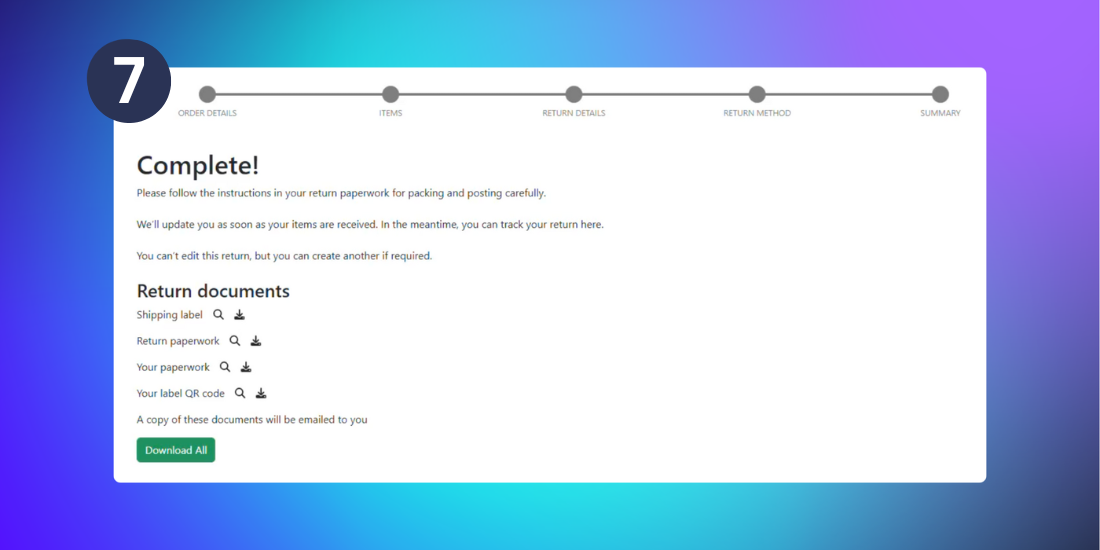
Once the return is successfully created a Complete message will show. The Return documents will be available for download, including the shipping label for the parcel, return paperwork and QR code.
Checking the status of a return
To check the status of a return you will need to locate it from the Returns List.
To find the Returns List click Returns (the arrows icon) in the left-menu. If you know the Order reference or Return ID you can use the Quick Search bar to locate it.
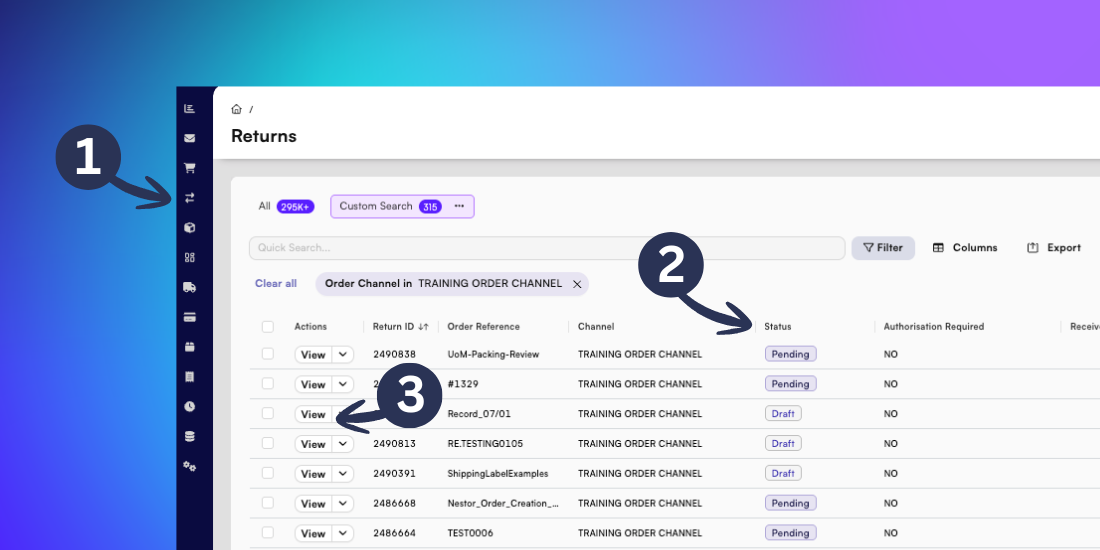
In the returns table the status will show as one of the following:
Draft - The return has been started but not completed on the Returns Portal
Customer Service - The return has been submitted outside of the acceptance window and required authorisation to be completed
Pending - The return has been submitted but has not yet arrived at the warehouse
Received - The return has been received by the warehouse and is awaiting completion or rejection
Awaiting Despatch - The return required an exchange or replacement to be provided, and this is awaiting despatch to the customer
Complete - The return has been processed and completed by the warehouse
Rejected - The return has been rejected by the warehouse
To find further information about the return such as the customer’s details and returned items, click View in the Returns List. This opens the return details page.
Arranging an exchange
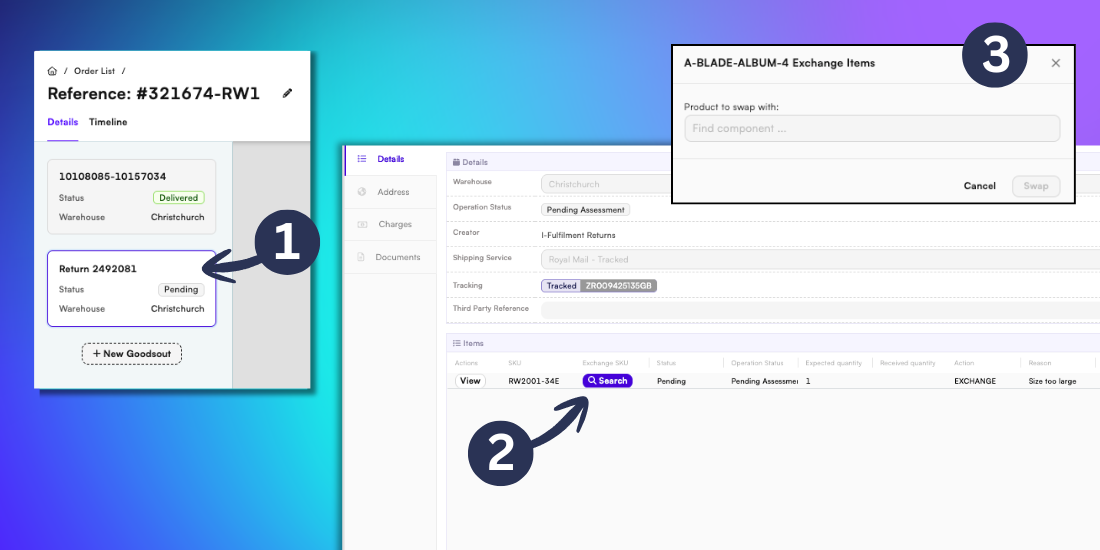
If a customer requires an exchange or replacement this can be added to the return from the return details page.
Open the return from the Returns List. Check that you’re viewing the return page, shown by the Return ID, not the original order.
In the Exchange SKU field select the Search button.
Use the dropdown list to search for a SKU to use for the exchange. Then click the Swap button to confirm.
This will action a new goodsout for the exchange, which will be allocated and despatched once the return has been checked in.