Bulk importing products
You can upload products in bulk into the BladePRO product list using a CSV template. Read our quick guide to learn how.
Last updated 4 months ago
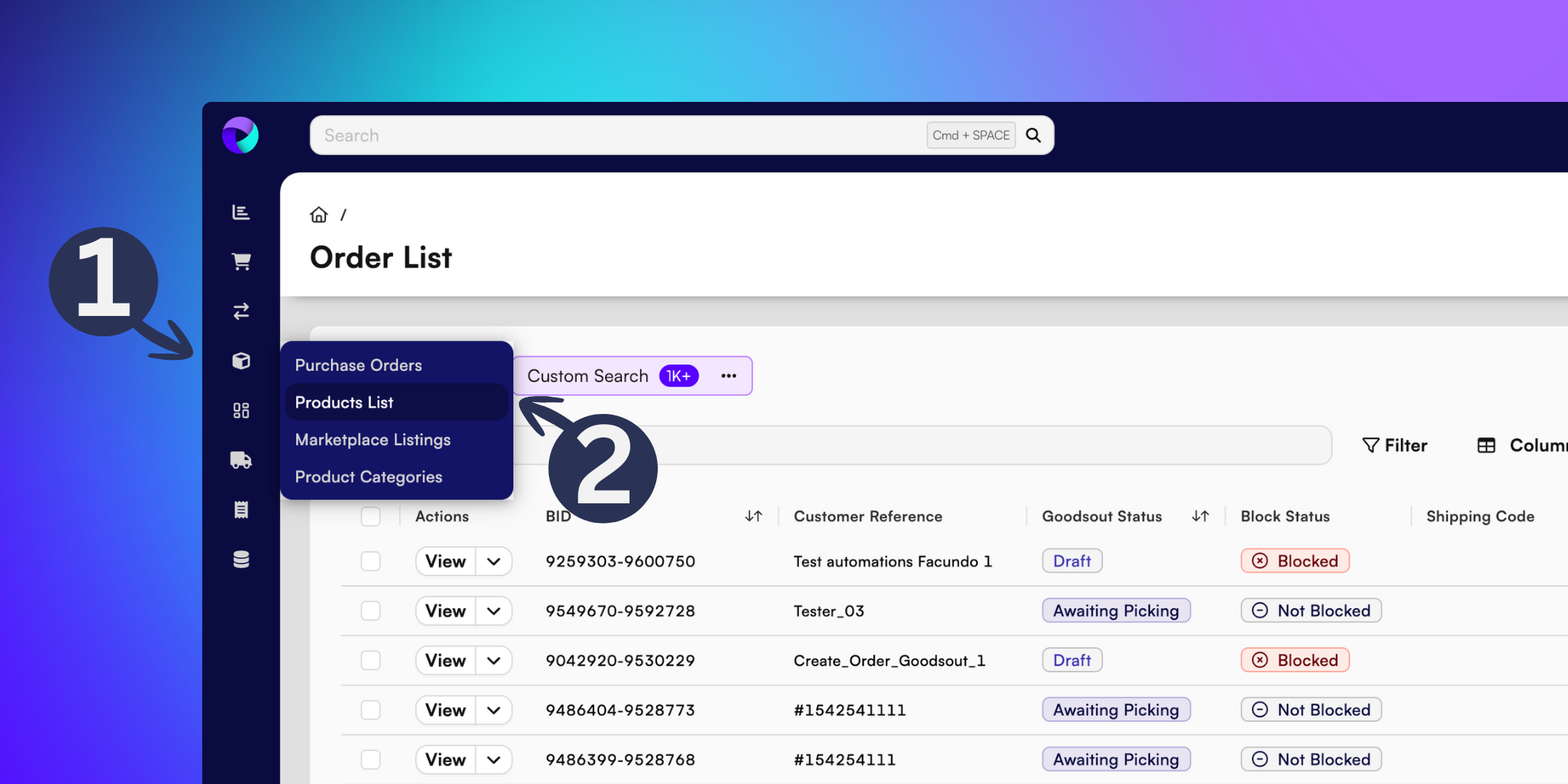
First, you’ll need to navigate to the Products List page by clicking the box icon (1) and selecting Products List from the popup menu (2).
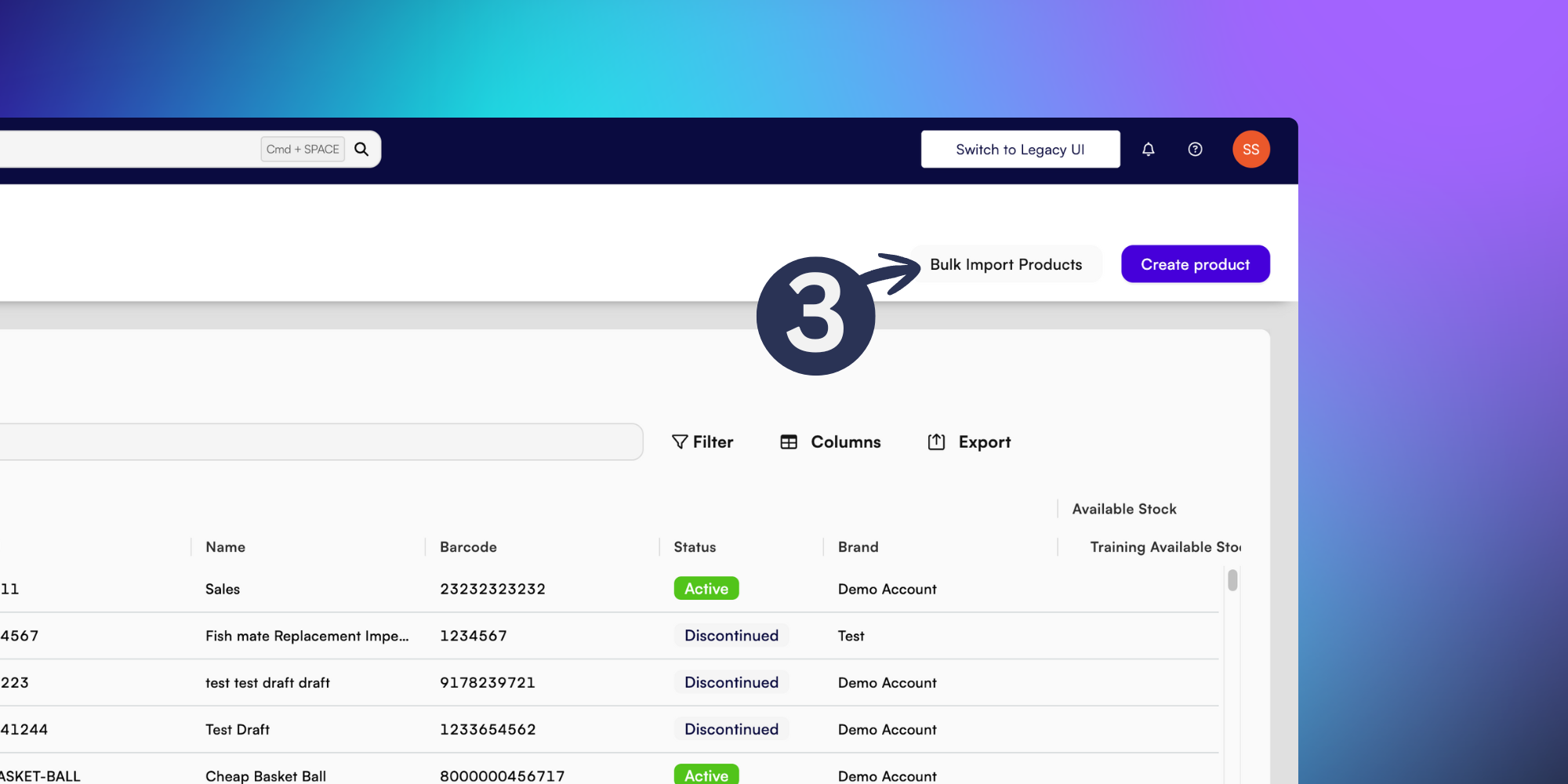
From the Products List page, click Bulk Import Products in the top-right (3).
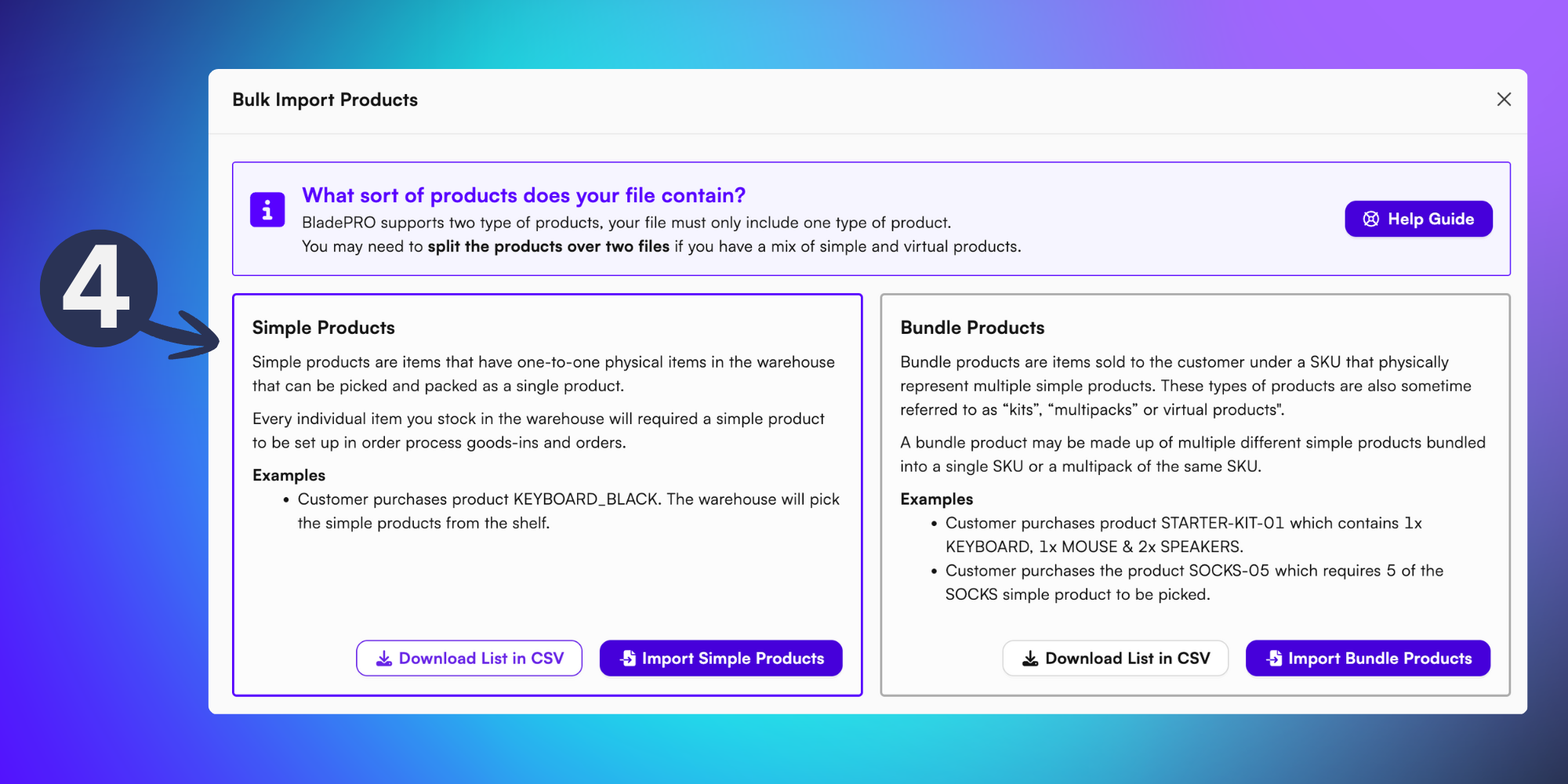
From the popup menu, choose which type of product you’ll be bulk importing into BladePRO.
We’ll now take you through the process of importing Simple Products, so you’ll be focusing on this section of the popup.
To bulk update your existing product list, Download List in CSV and input the Product Channel, Length Measurement Unit and Weight Measurement Unit from the dropdown menus.
Open the downloaded file and make the changes in the CSV spreadsheet. Reupload the template to BladePRO using the Import Single Products button as shown below (4).
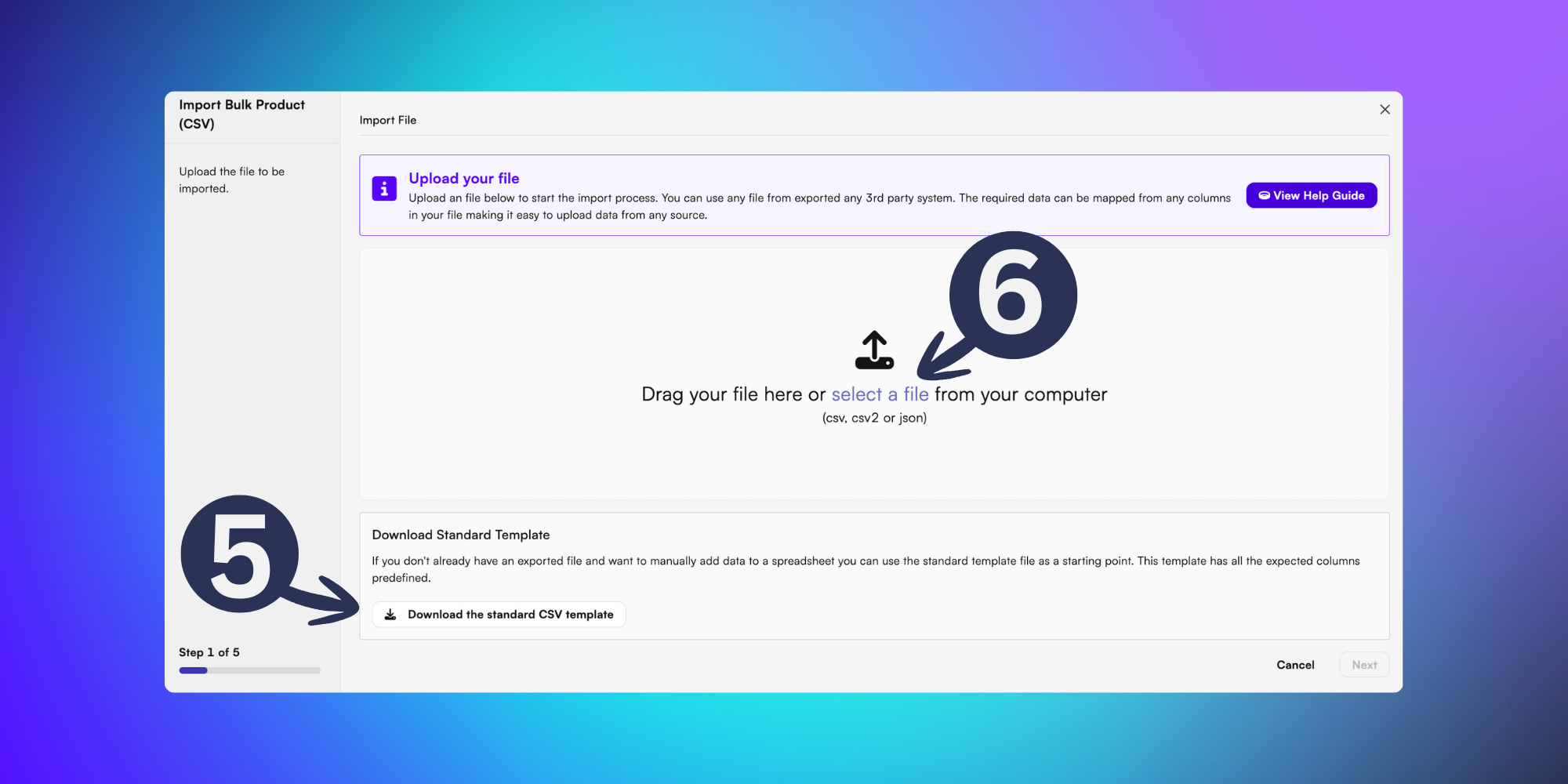
Select Import Simple Products.
First you’ll need to click Download the standard CSV template from the popup menu (5) and open the downloaded file on your device.
Populate the fields in the template.
The more details you can include in the template, the more accurate your reporting will be. At a minimum, required fields for a bulk product import template include:
SKU
Name
Barcode
Brand
Singles length
Singles width
Singles height
Singles weight
What it is
What material it’s made of
What it’s used for
Country of origin
HS code
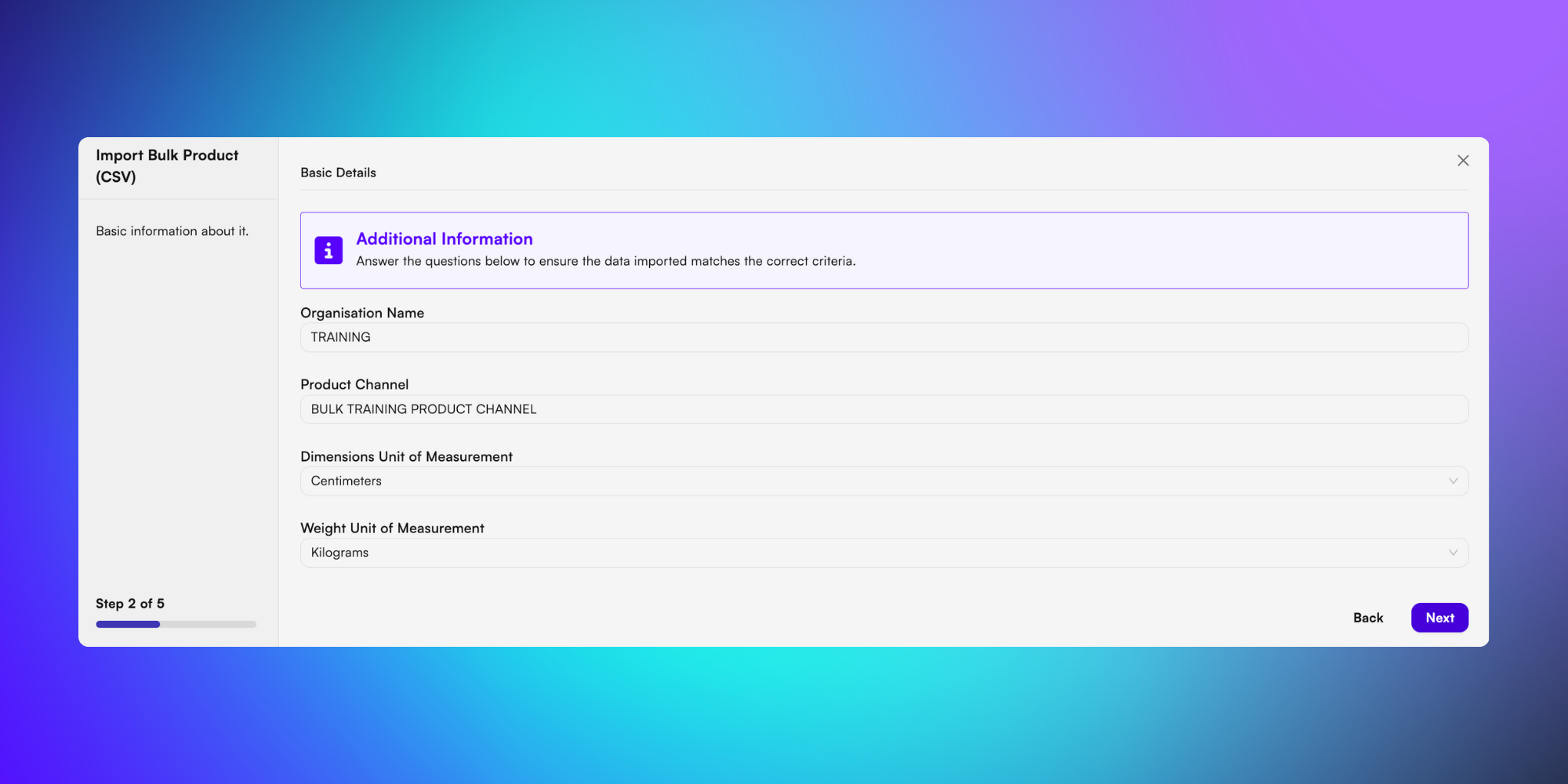
Once you’ve uploaded your template to BladePRO, you’ll be asked to select the following from the dropdown menus:
Organisation Name
Product Channel
Dimensions Unit of Measurement
Weight Unit of Measurement
Click Next to move to the following step.
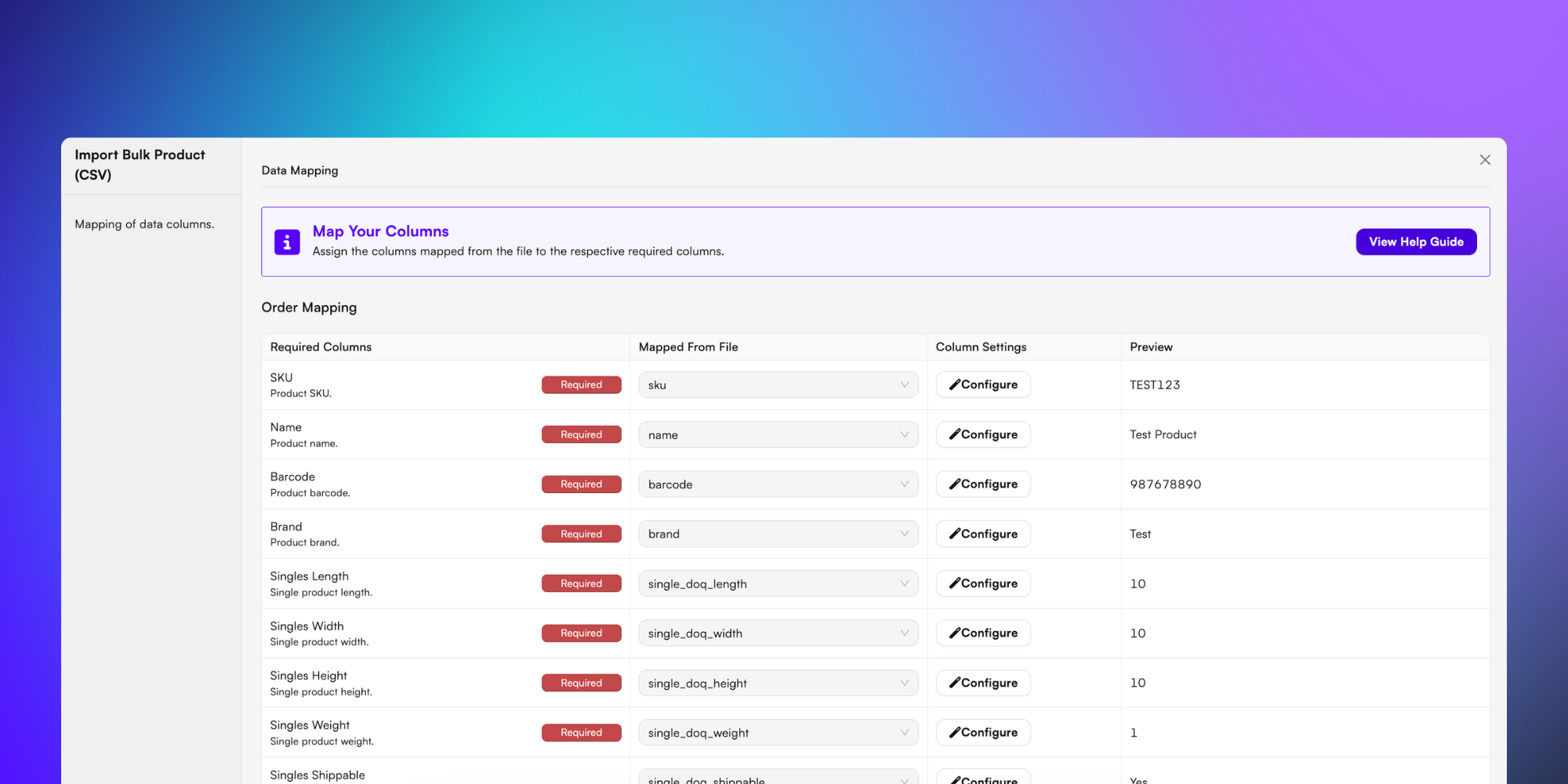
You’ll then need to data map your spreadsheet, ensuring that there is a column mapped to each required field (see above for required fields).
Review the data mapped from your previous template and reconfigure the format if necessary to pull the correct information.
If you’re happy with the data, scroll to the bottom and select Next.
If you’ve configured your template in a way you’d like to use in the future, when the Save or Update Configuration as Template option appears, click Yes.
If you wouldn’t like to save the data mapping template, click Skip.
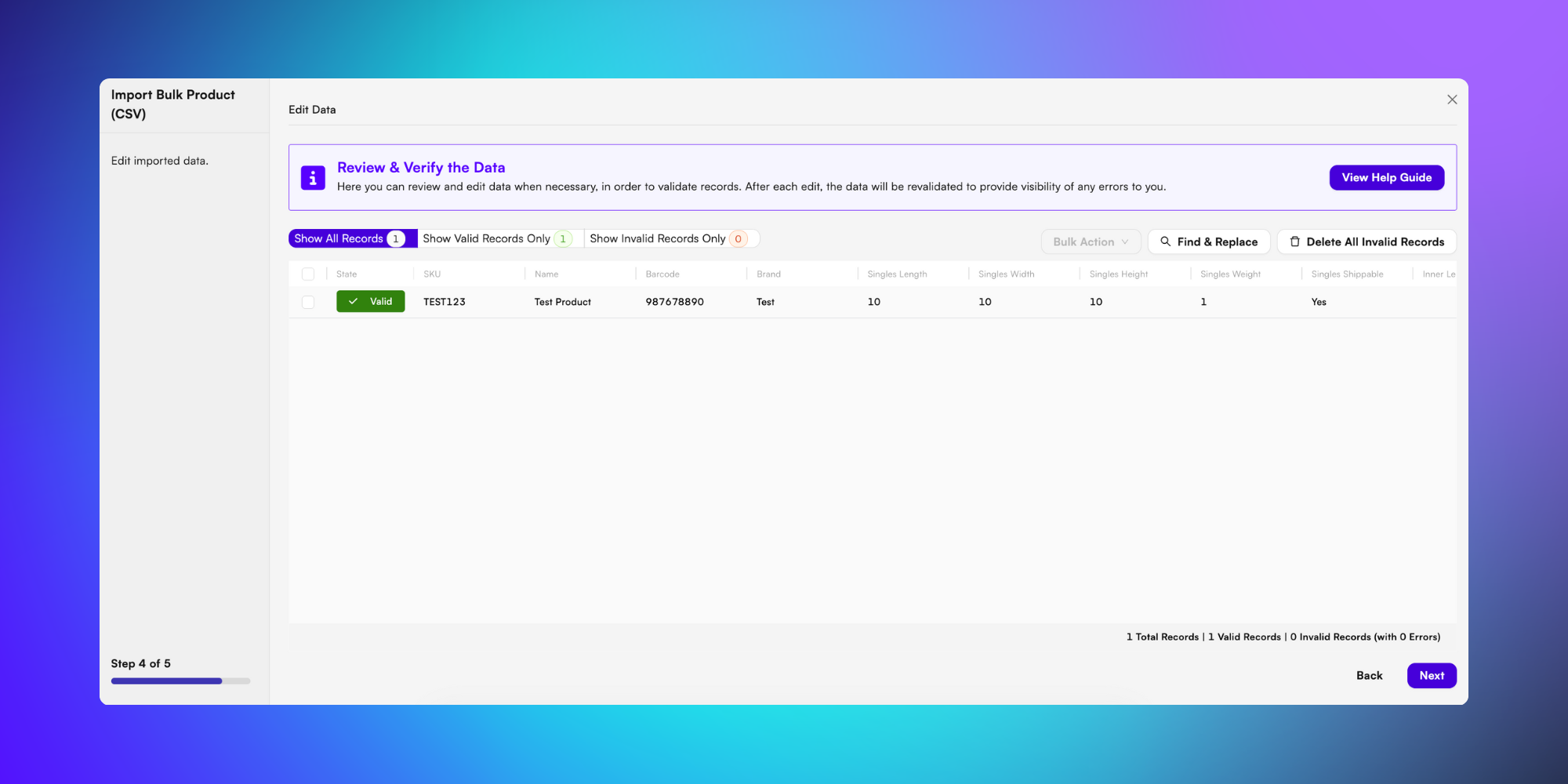
The next step requires you to review your imported data, separating imported products into valid (successfully mapped) and invalid (errored) data.
With this information you can choose to go back and update your CSV file to fix errors and ensure import of the correct information.
You can also choose to Delete All Invalid Records in order to move forward with import and omit the errored lines.
Once you’re happy with your data, click Next to initiate the import of your new bulk products.
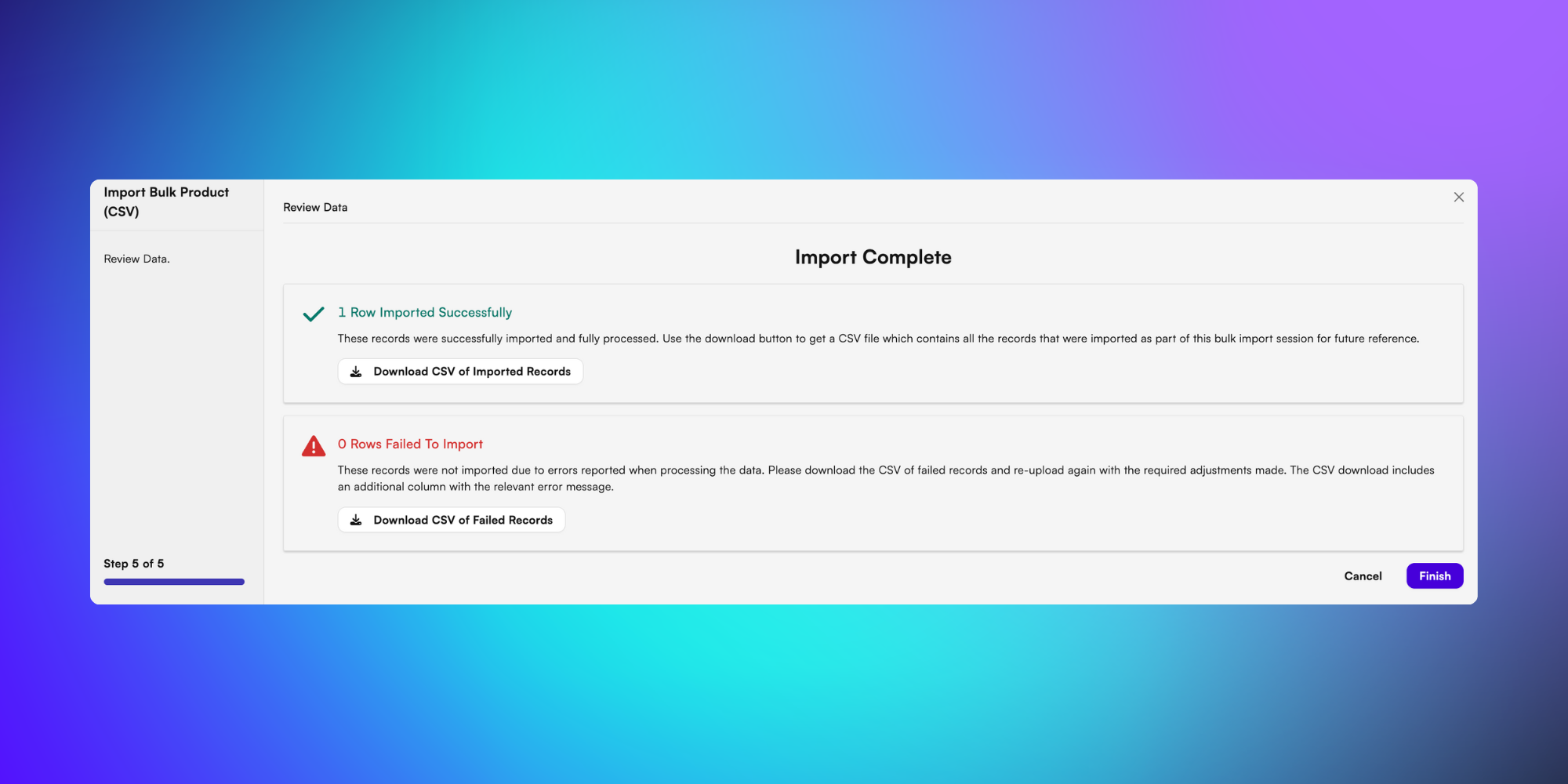
After import has processed, the final stage provides an overview of the number of rows imported successfully and the number of lines that processed with errors.
You can download a CSV file of each of these reports for your records.
Click Finish to finalise the process.
You’ll be able to find all your successfully imported SKUs in the Product List now, which you can check by searching or filtering to refine results.
And that’s all there is to know about bulk importing products on BladePRO!