Reviewing your account health
The Account Health Check page gives you a complete overview of your warehouse operations, highlighting issues that need attention and providing real-time order metrics.
Last updated 9 days ago
Access the Account Health Check
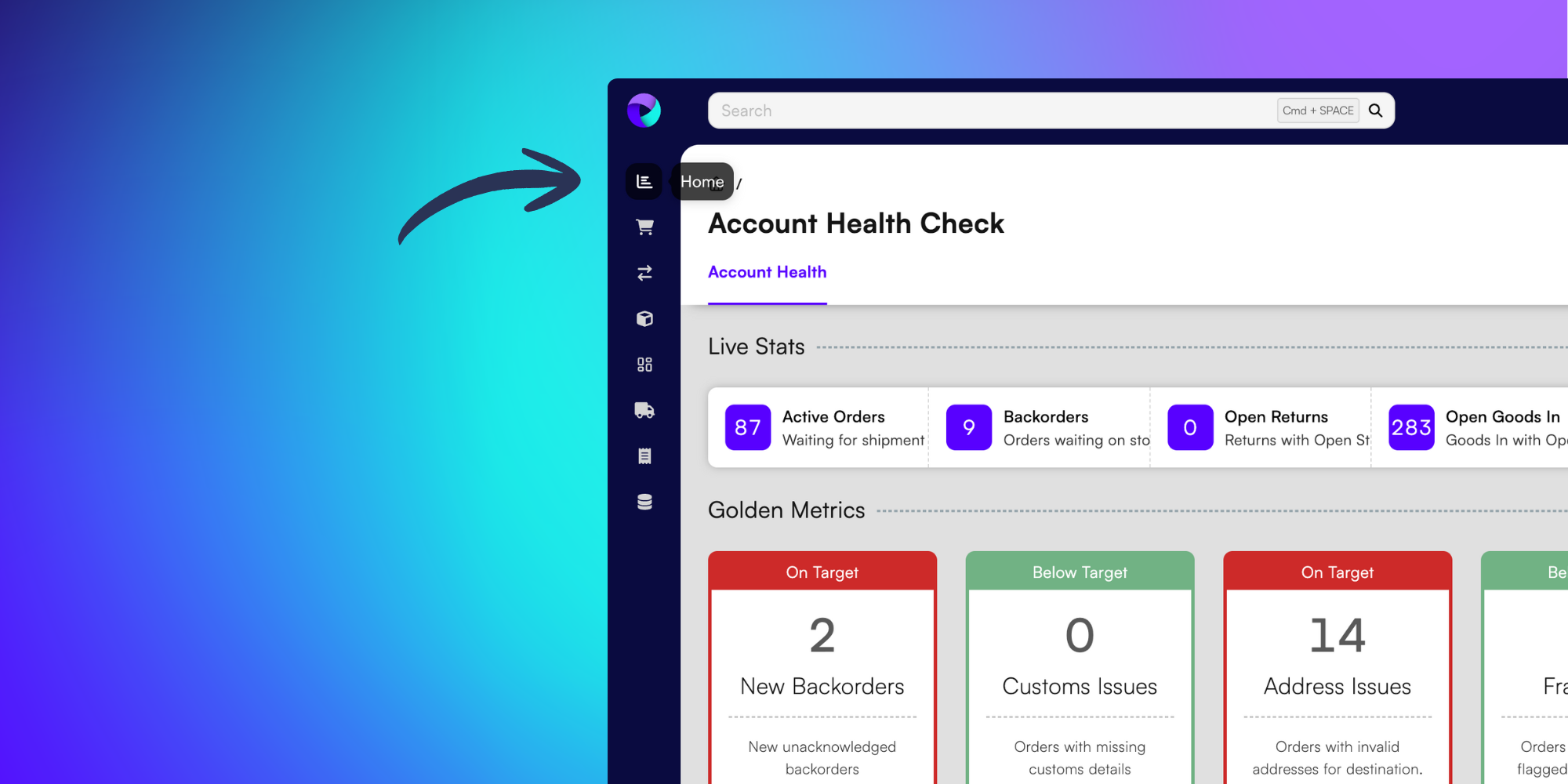
To find the Account Health Check page, click the Home button in the left menu, shown as a graph icon.
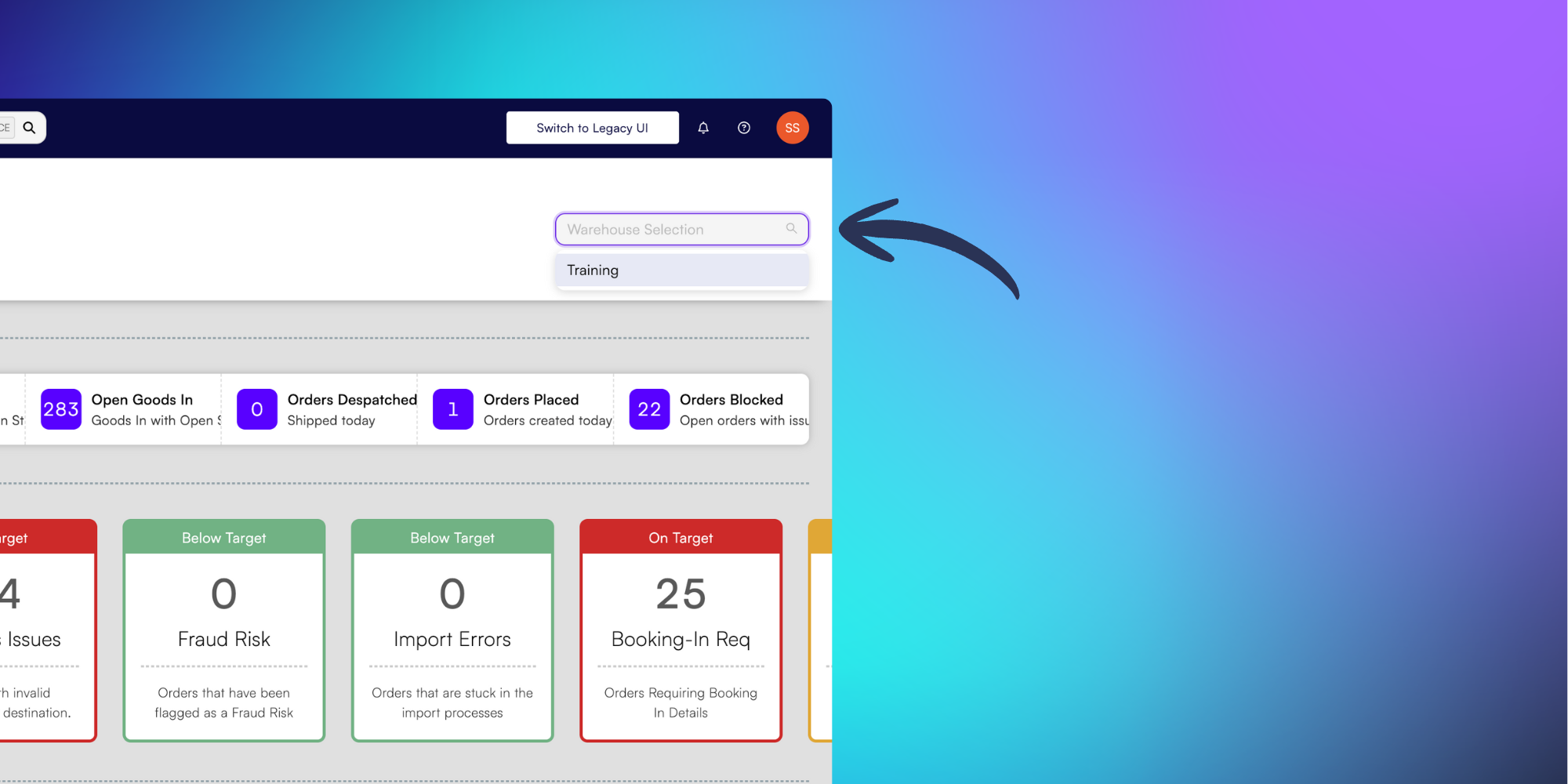
If you are using more than one of our fulfillment centres you will automatically be shown data across all warehouses. To filter data by a specific warehouse, use the Warehouse Selection dropdown at the top-right of the page.
Monitor your Live Stats
The Live Stats section displays real-time order metrics at the top of your dashboard.
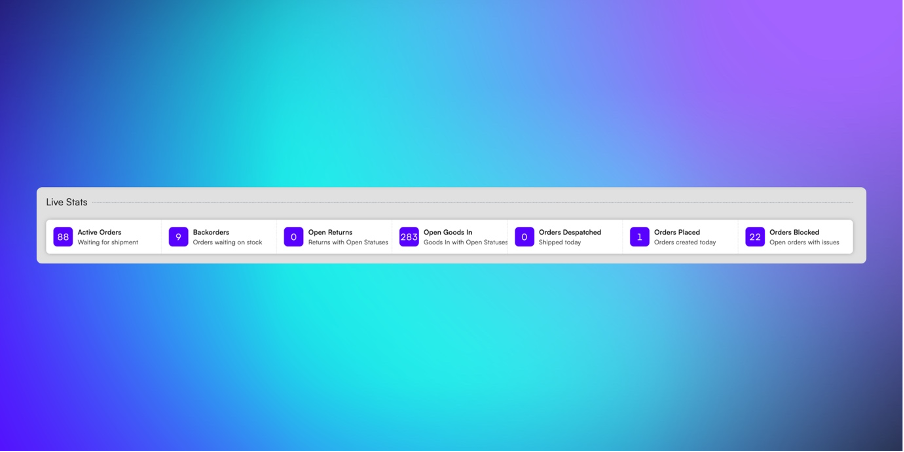
These Live Stats include:
Active Orders – Orders awaiting shipment
Backorders – Orders awaiting stock
Open Returns – Returns still in progress
Open Goods In – Goods-in records still in progress
Orders Dispatched – Orders shipped today
Orders Placed – Orders received today
Orders Blocked – Orders with issues preventing dispatch
Click on any statistic to view detailed information in a new tab.
Tip: This page isn’t a live feed and won’t refresh automatically. You’ll need to refresh the browser page to update your data.
Golden Metrics
In the next section, you’ll see Golden Metrics. This provides an high-level overview of any issues across your warehouse workflow.
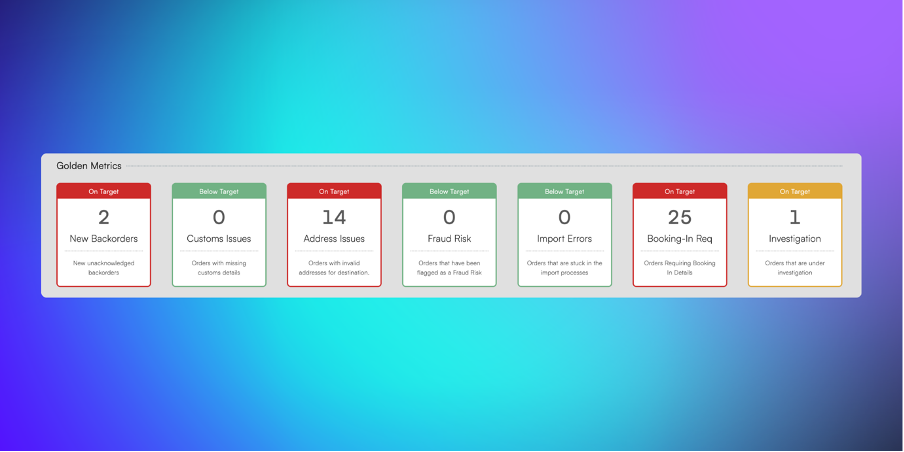
These Golden Metrics include:
New Backorders – Unacknowledged backorders
Custom Issues – Orders missing customs information
Address Issues – Orders with invalid shipping addresses
Fraud Risk – Orders flagged as potential fraud
Import Errors – Orders blocked during import
Booking-In Req – Orders without booking references
Investigation – Orders under investigation
Each metric uses a traffic light system (green/yellow/red) to indicate severity. Click any metric to open affected orders in a new tab.
Resolve Actionable Issues
The Actionable Issues section displays orders requiring immediate action—specifically New Backorders and Address Issues.
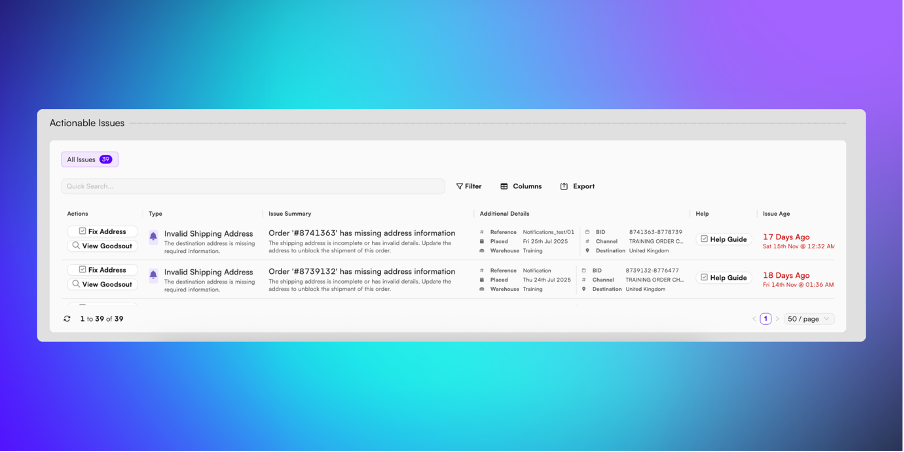
Use these tools to navigate your actionable issues:
Quick Search – Find a specific order quickly by typing in the search bar
Filters – Sort by order age and issue type
Export – Download data as a spreadsheet
Customise your view
Use the columns option to select the information you need from the list below:
Actions – Resolve the required action by clicking on the button (Acknowledge Order or Fix Address) or click View Goodsout to view the order in a new tab
Type – Shows the type of issue
Issue Summary – Provides a detailed description of the issue, including the order number
Additional Details – Shows the warehouse, order date, reference number, BID, channel, and destination
Help – Access in-platform guides for resolving issues
Issue Age – Time elapsed since the issue was first raised